
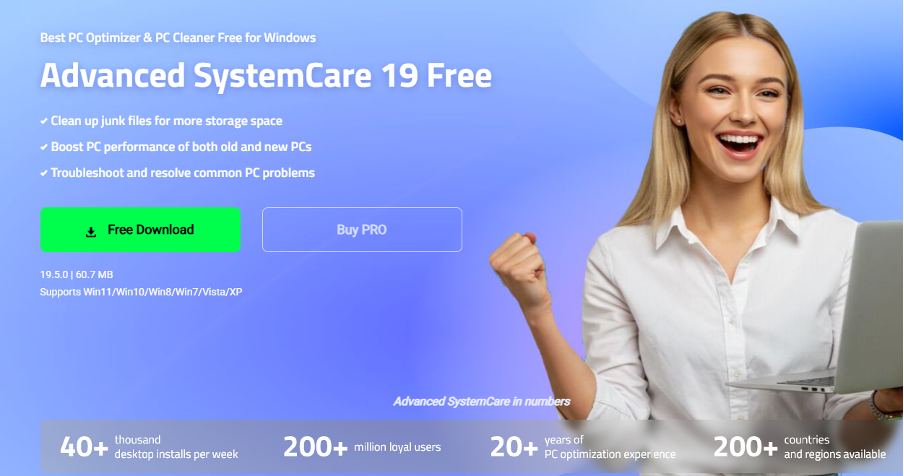
If you had asked me six months ago why my PC felt slow, I probably would have blamed the hardware. I would have assumed my SSD was getting old, my RAM wasn’t enough, or Windows had simply become heavier over time. The truth was much less dramatic. My computer wasn’t broken—it was just full of the little things that build up after years of everyday use. Temporary files, startup apps, browser junk, background services, and privacy traces were quietly piling up without me noticing.
Instead of replacing hardware, I decided to spend half an hour cleaning and optimizing my system with Advanced SystemCare. I wasn’t expecting miracles, but I was curious whether better maintenance could make a real difference.
After using it regularly for several weeks, my PC genuinely feels smoother. Not because it suddenly became a gaming monster, but because the everyday experience—booting Windows, opening apps, browsing, and multitasking—became noticeably more responsive.
It Started with One AI Scan
The first thing I tried was the AI Mode scan.
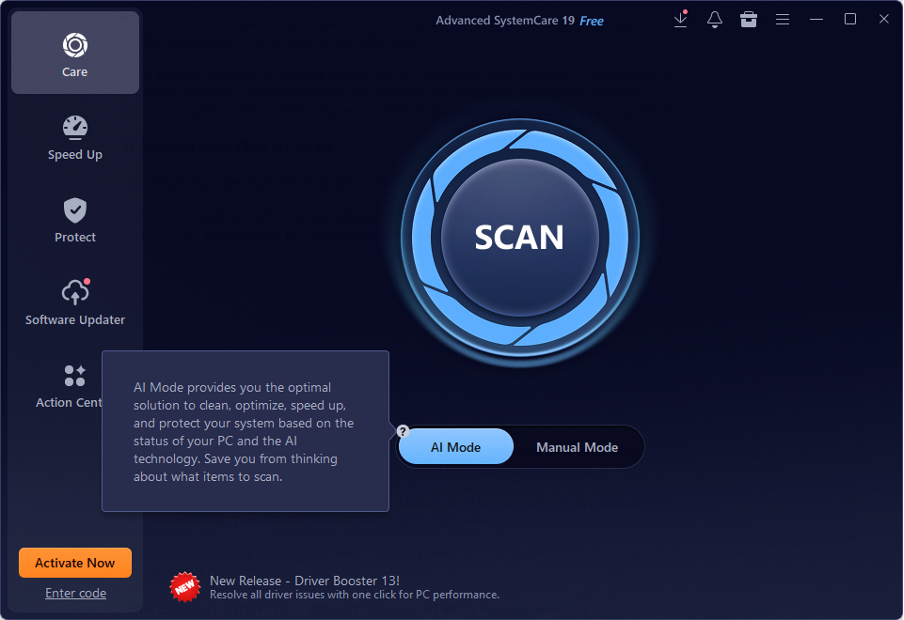
Rather than asking me to choose between dozens of optimization tools, Advanced SystemCare analyzed my PC and recommended what needed attention based on my system condition and usage habits. It checked junk files, registry issues, startup items, browser traces, and other areas that commonly affect Windows performance.
I liked this approach because it felt practical. I didn’t need to know what every optimization did—I could simply review the results before applying them.
The scan only took a few minutes, and I was surprised by how much unnecessary data had accumulated.
The Biggest Difference Wasn’t Speed—It Was Responsiveness
People often measure PC performance by benchmark scores or FPS, but that’s not what I noticed.
What changed was how quickly Windows responded to everyday tasks.
Programs opened faster, File Explorer felt smoother, and switching between applications became more fluid. Those tiny delays that I’d gotten used to gradually disappeared.
I think that’s because Advanced SystemCare focuses on cleaning and optimizing several parts of Windows at once instead of targeting a single issue. According to IObit’s official feature overview, the software combines system cleanup, startup optimization, privacy protection, and real-time performance tuning into one maintenance workflow.
It isn’t one dramatic improvement—it’s lots of small improvements working together.
Cleaning the Junk I Never See
One feature I now use almost every week is Junk File Clean.
Windows constantly creates temporary files, logs, installer leftovers, browser cache, and other files that most of us never think about. Individually they’re harmless, but together they waste storage and create unnecessary clutter.
Advanced SystemCare automatically finds these files and removes what isn’t needed. It also includes a Large File Cleaner, which helped me discover several forgotten downloads that were taking up gigabytes of space.
I probably wouldn’t have found those manually.
The nice thing is that I don’t feel like I’m constantly hunting for storage anymore. The cleanup has become part of my regular routine.
Startup Optimization Was Surprisingly Effective
My PC used to take much longer to feel “ready” after logging in.
The desktop would appear quickly, but several background applications would continue loading for another minute or two. During that time, opening Chrome or another program always felt sluggish.
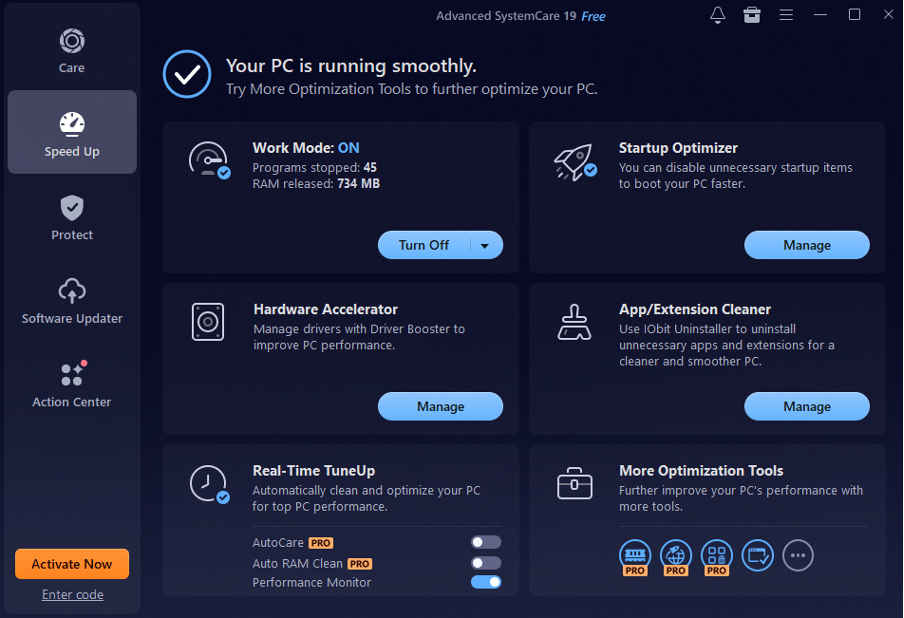
The Startup Optimizer helped me identify which applications actually needed to launch with Windows and which ones didn’t.
I disabled several utilities that I rarely used, and the difference was immediate. Windows reached a usable state much faster because fewer programs were competing for CPU and memory during startup. IObit says the optimizer can intelligently manage millions of startup items to improve boot efficiency.
It’s one of those changes that’s easy to appreciate every single day.
Real-Time TuneUp Works Quietly
I wasn’t expecting to like Real-Time TuneUp as much as I do.
Instead of waiting until my memory usage becomes excessive, it monitors system resources in the background and automatically frees RAM or disk resources when appropriate.
I spend most of my day with too many browser tabs open, Photoshop running, Spotify playing, and several messaging apps active.
Normally that combination would gradually slow everything down.
With Real-Time TuneUp enabled, I don’t find myself opening Task Manager nearly as often. The optimization happens quietly enough that I usually forget it’s even running—which is probably the best compliment I can give background software.
Turbo Boost Makes Sense Before Gaming
Although Advanced SystemCare isn’t a gaming utility, I found Turbo Boost useful before launching games.
Rather than overclocking hardware or changing graphics settings, it temporarily closes unnecessary background services and applications so more system resources remain available for what I’m doing.
I mostly use Game Mode, but there’s also a Work Mode when I want maximum performance while editing videos or handling larger creative projects.
Again, the improvement isn’t magical.
But removing unnecessary background processes is much easier than manually closing everything myself.
Privacy Protection Is a Bonus I Didn’t Expect
Performance wasn’t the only reason I installed Advanced SystemCare.
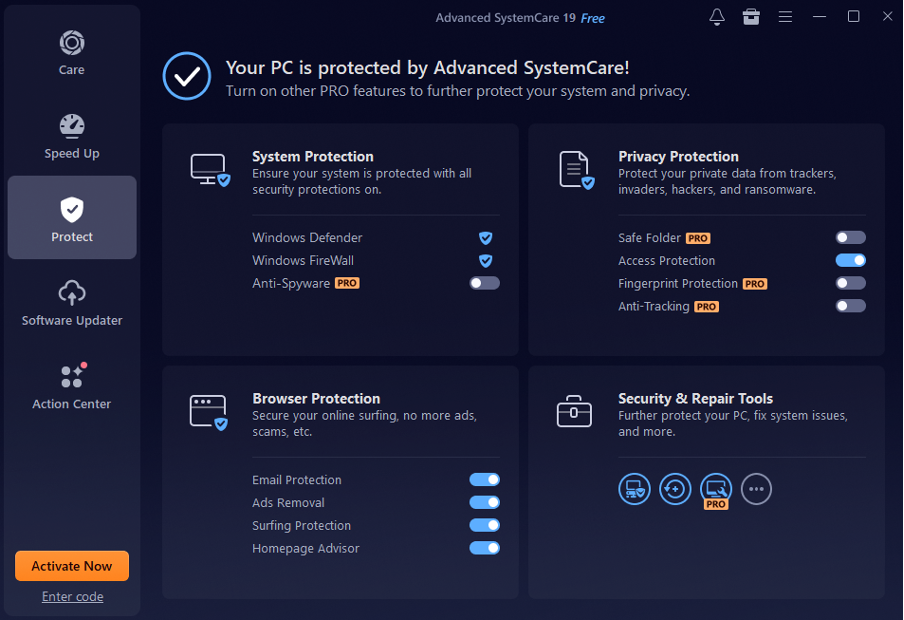
The software also includes privacy tools that clear browsing traces, cookies, cached data, and digital fingerprints left behind by browsers and other applications. Browser Protection helps reduce tracking and protects browser settings from unwanted changes.
I like having these tools included because privacy maintenance is something I usually forget about.
Now it’s handled alongside my regular system cleanup instead of becoming another separate task.
It’s Not Perfect—and That’s Worth Mentioning
No optimization software can perform miracles, and I think it’s important to be honest about that.
If your PC has an outdated processor or not enough RAM for the applications you’re running, Advanced SystemCare won’t magically solve those hardware limitations. Likewise, deleting junk files won’t suddenly double your gaming performance.
Some features are also more valuable than others depending on how you use your computer. If you already manage startup apps manually and regularly clean Windows yourself, the improvements may feel smaller.
For me, the biggest value isn’t one individual tool—it’s having everything in one place.
Final Thoughts
Looking back, I was ready to blame my hardware for problems that were really caused by neglected maintenance. Advanced SystemCare didn’t give me a brand-new computer, but it did make the one I already owned feel cleaner, faster, and more responsive. Its combination of intelligent cleanup, startup optimization, and real-time tuning removed a lot of the small things slowing me down, while the PC Cleaner helped clear out unnecessary files and free up valuable storage space.
If a Windows PC has gradually become slower over time, I’d suggest trying a good PC cleaner and some basic system optimization before shopping for hardware upgrades. Sometimes, a little maintenance can go further than expected.
