
Your phone is not the problem. The Low Power Mode toggle you flipped at lunch is, because on a ProMotion iPhone it halves your refresh rate for the rest of the day, and you will feel it the moment five heroes and a Lord animation land on screen at once. Almost every written Mobile Legends settings guide is Android-first, device-agnostic advice bolted onto a screenshot of the Controls tab. Nobody tells iOS players which toggles actually matter on their hardware.
Why Your iPhone or iPad Needs a Different Setup Than an Android Phone
iOS handles thermals, refresh rate, and background work on its own terms. There is no manufacturer “game booster” app to clear RAM, no per-app frame rate override, no way to pin a core. Instead, you get an operating system that throttles hard when the chassis heats up, caps your display when the battery gets nervous, and drops a Messages banner right on top of your second skill button. Copy an Android guide word for word, and you leave frame drops on the table that have nothing to do with graphics settings.
Maximum settings are not the goal. You want a stable frame rate that does not sag in the tenth minute, controls that match your screen size instead of fighting it, and a ping that holds through a team fight. Device-level pass first, then graphics, then controls.
Know Your Device: Which iPhones and iPads Actually Hit 120fps
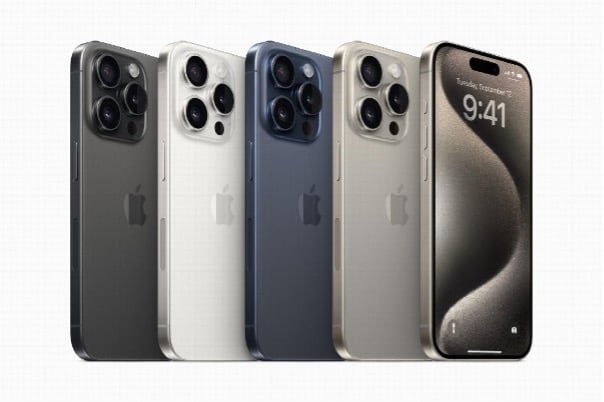
MLBB’s Ultra frame rate option tops out at 120fps, and it only does anything if your panel can display 120Hz. That is a shorter list than most players assume. ProMotion arrived on the iPhone 13 Pro and 13 Pro Max, stayed exclusive to the Pro line through the 16 Pro Max, then spread to the standard iPhone 17 and iPhone Air. On tablets, it has always been an iPad Pro feature. The base iPad and every iPad Air, M-series included, are 60Hz panels.
So on an iPhone 13, 14, 15, or 16 (non-Pro), an iPad Air, or a base iPad, Ultra frame rate gains you nothing visible. The panel cannot show more than 60 frames per second, and forcing it just runs the chip hotter.
Three things get confused constantly. Refresh rate is how often your screen redraws, and hardware fixes it. Frame rate is what MLBB renders, which depends on the chip and the load. The in-game Refresh Rate slider is really a frame rate target. Aiming at a number your panel cannot show is wasted heat, and heat is what costs you frames later.
iOS Settings to Change Before You Open Mobile Legends
This is the half of the setup nobody writes about, and it is worth more than any in-game toggle.
Turn Off Low Power Mode and Let Game Mode Do Its Job
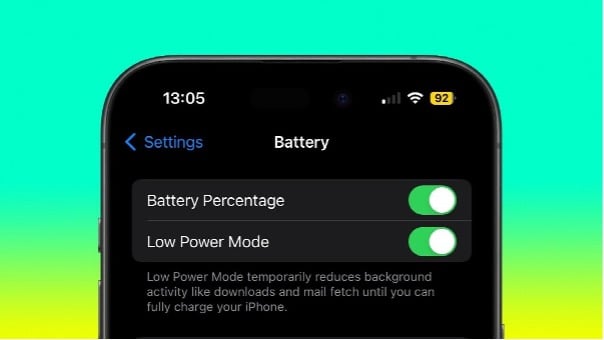
Low Power Mode is the single most expensive setting on an iPhone for MLBB performance. On ProMotion models, it limits the display to 60Hz, and it also pauses Background App Refresh, dims the screen, and drops Auto-Lock to 30 seconds. Check Settings > Battery before ranked and make sure it is off, and remember iOS offers to enable it automatically at 20 percent, mid-session.
Game Mode does the opposite. On iOS 18 and iPadOS 18 or later, it gives the game priority access to the CPU and GPU, reduces background tasks, and doubles the Bluetooth sampling rate so controllers and AirPods respond faster. It switches on automatically when a game runs full screen, and you can confirm it from the Game Overlay in Control Center.
Silence Notifications and Background App Refresh
Build a Focus profile for ranked under Settings > Focus, one that allows calls from nobody and silences everything else. A banner sliding over the top of the screen costs more than your attention: tap through it while reaching for a battle spell, and you have thrown a fight.
Then open Settings > General > Background App Refresh and switch it off for the heavy offenders: social apps, cloud photo backups, anything that syncs. You do not need to kill it globally. You need Instagram to stop waking up mid-jungle to fetch a feed.
Display, Auto-Lock and Brightness
Set Settings > Display & Brightness > Auto-Lock to 5 minutes or Never, then turn True Tone off and leave Night Shift off while you play. Both shift color temperature and warm whites make bush edges and minimap icons harder to read at a glance.
Kill auto-brightness too, under Settings > Accessibility > Display & Text Size, and set the slider manually around 70 to 80 percent. Auto-brightness dims exactly when the device warms up, which is exactly when the fight starts.
Free Storage, Update the App, Restart Before Ranked
Keep at least 10 percent of your storage free, checked under Settings > General > iPhone Storage. iOS needs headroom for shader caches and match assets, and a nearly full device stutters on hero load screens in ways that look exactly like lag.
Update MLBB and iOS between sessions, never twenty minutes before a placement match, since big patches occasionally reset custom UI layouts. And restart before a serious ranked run. A phone awake for days carries real memory pressure, and a reboot is the cheapest performance fix.
Best Mobile Legends Graphics Settings on iPhone and iPad
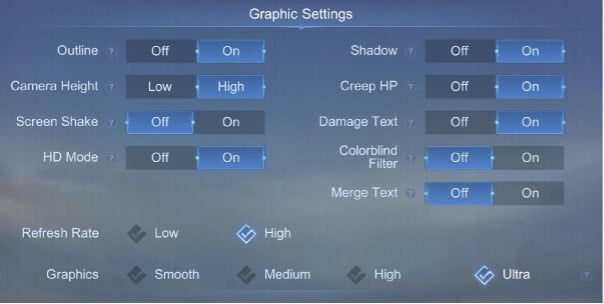
Now open MLBB, hit the gear icon, and work through the Basic tab. Every toggle here costs something, and the trick is knowing what each one buys in return.
Settings will not build you a hero pool, though, which is why some players who want to main a new role without grinding it from scratch pick up a Mobile Legends account through a marketplace like BoostRoyal instead of spending a season unlocking heroes they are still learning.
Frame Rate and Refresh Rate: Pick Stability Over Peak
A locked 60fps beats a frame rate that swings between 90 and 45. Your hands calibrate to a rhythm, and every dip is a missed skill window. Set Refresh Rate to Ultra only on ProMotion hardware that stays cool, High on 60Hz iPhones and iPads, and Medium or Low on anything from the iPhone XR and 11 era.
Turn on the in-game FPS and ping display so you can see this. The number that matters is the floor during a five-versus-five around Lord, not the peak. If that floor sits more than 15fps below your target, you are asking for more than the device can sustain.
HD Mode, Shadow, Outline and Screen Shake
Shadow is the biggest single frame rate cost in the game and gives you nothing competitive. Off, on every device, including an iPad Pro if you want headroom for long matches. HD Mode sharpens textures and hits mid-range hardware hard, so leave it off on any 60Hz iPhone and the base iPad, and treat it as a luxury Pro silicon can afford.
Screen Shake off, always. It nudges the camera during ults, which is the worst possible moment for your aim to move. Outline is the one thing here I keep on: it draws a border around heroes and makes picking the right target in a cluttered fight noticeably faster.
Camera Height, Creep HP and Damage Text
Camera Height to high. The extra vision is small but it compounds, showing you a rotating roamer half a second earlier. Creep HP on, because last-hitting in the gold lane and timing jungle camps without seeing creep health is guesswork. Damage Text on, so you learn what your burst actually does instead of estimating it, which is how you stop diving a hero you cannot kill.
Recommended Graphics Presets by iPhone and iPad Tier
Find your device tier, apply the row, then leave it alone for a few matches before judging it.
| Device tier | Refresh Rate | Graphics Quality | HD Mode | Shadow |
| iPhone XR, 11, SE (older 60Hz) | Medium | Smooth | Off | Off |
| iPhone 13 to 16 non-Pro, base iPad, iPad Air M-series | High | Medium | Off | Off |
| iPhone 13 Pro to 17 Pro Max, iPhone 17, iPhone Air | Ultra | High | On | Off |
| iPad Pro (M-series) | Ultra | High | On | On |
If the Ultra option does not appear on your iPad Pro, High is your ceiling and that is fine. If frames still dip after applying your row, drop things in this order: HD Mode first, Graphics Quality one step next, Refresh Rate last. Never start with Refresh Rate, because that is the setting you feel in your thumbs.
Best Control Settings for Mobile Legends on iOS
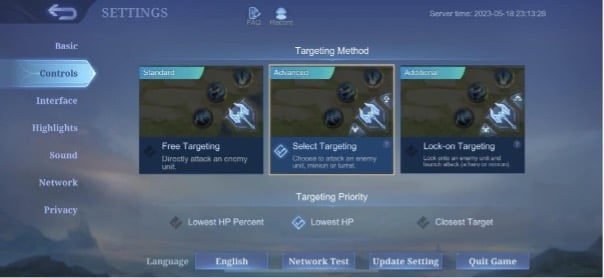
Graphics decide how the game looks. Controls decide whether you win the fight.
Targeting Method and Targeting Priority
Set Targeting Method to Advanced. It is the baseline for competitive play. Advanced lets you choose whether a basic attack goes into a minion, a turret or a hero, so you can farm under tower without pulling aggro and last-hit a cannon minion while an enemy marksman stands two steps away.
Targeting Priority splits by role. Lowest HP for marksmen and assassins, whose job is converting a low-health enemy into a kill before they reach the second turret. Closest Target for fighters, tanks and roamers, who need attacks landing on whoever is physically in front of them rather than chasing a sliver of health across the screen.
Hero Lock Mode, Smart Targeting and Aim Panning
Hero Lock Mode on. Skill Smart Targeting and Basic Attack Smart Targeting off. Those two auto-aim helpers override the lock you deliberately set, and there is nothing worse than committing an ultimate to a tank because the game decided the tank was closer.
Aim Panning on, so the camera slides with long skillshots and you can see where a Franco hook or a Layla ult is going. Assisted Aiming Mode and Attack Assist are training wheels: useful for new players, worth switching off once your manual aim lands reliably, since they will occasionally snap to the wrong target at the worst time.
Joystick, Sensitivity and Cancel-Cast
Fixed joystick, not dynamic. A fixed origin means your left thumb learns one spot and stops hunting for it in a panic. Camera sensitivity slightly above the midpoint, around 60 to 70 percent, gives you fast map scanning without overshooting.
Enable Cancel Cast and make sure the cancel zone sits where your thumb can reach it without a stretch, since fake-casting a skill to bait a dash is free value. Auto Build and Auto Level-Up off, both, because the player who levels the right skill at the right time wins lane. Tune all of this one variable per match: change one value, play a full game, keep it or revert it.
Custom UI: Thumb Reach on a 6.1-inch iPhone vs an 11-inch iPad
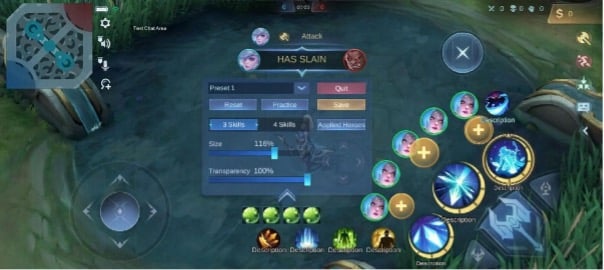
The default layout was designed for a phone, and it shows how it looks when you play on a tablet. On an 11-inch iPad, the skill buttons sit so far into the corners that your thumb travels a real distance to reach them; measured in milliseconds, you do not have. Open Custom UI, pull the skill cluster, battle spell, Retribution, and recall buttons inward and up, then enlarge them.
On a 6.1-inch iPhone, the problem inverts: default-size buttons sit close enough together that a slightly off thumb press hits the wrong skill, so keep the two skills you combo most often furthest apart. On both, push the minimap to roughly 120 percent so rotations read at a glance, and drop battlefield UI opacity low so the HUD stops hiding a flanking assassin.
Two iPad habits worth building: lock the orientation to landscape from Control Center, and keep MLBB out of Split View and Stage Manager. A game sharing the screen with Safari shares the GPU with Safari.
Network Settings and Ping on Wi-Fi vs Cellular
In the Network tab, switch Speed Mode on when your connection is stable. It uses a little more data in exchange for steadier routing. Network Boost only earns its place when both Wi-Fi and cellular are live, since it leans on both at once. For ranked, treat anything under 80ms as playable and anything consistently over 120ms as a reason to stop queueing.
The iOS fixes matter more than either toggle. Turn off Wi-Fi Assist (Settings > Cellular on iOS 26 and earlier; renamed Connectivity Assist and moved to Settings > Wi-Fi in iOS 27), because it hands your connection to cellular the moment Wi-Fi dips, and that handover lands as a freeze mid-fight. Disconnect any VPN before you queue, since every VPN adds a hop and hops add ping. iCloud Private Relay gets blamed unfairly: it covers Safari browsing and DNS rather than the game’s traffic, so it is not your ping spike, though switching it off removes a variable while you troubleshoot. Then join your router’s 5GHz band instead of 2.4GHz.
