
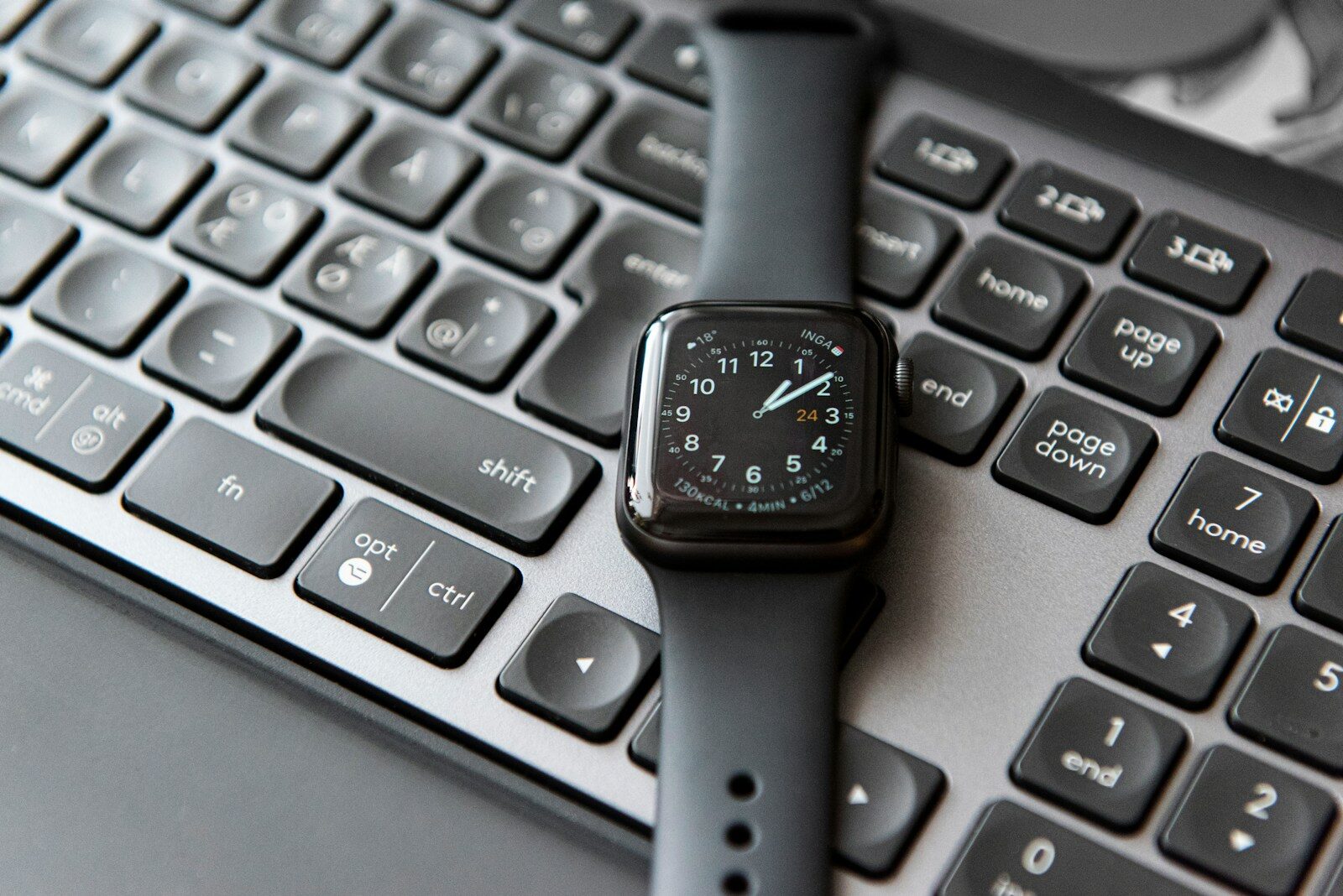
Restarting your Apple Watch may seem like a simple task, but knowing how and when to do it can make a big difference in performance and troubleshooting. Whether your Apple Watch is frozen, glitchy, or just needs a quick refresh, understanding how to restart Apple Watch the right way is essential for every user.
In this comprehensive guide, you’ll discover different methods to restart Apple Watch, when it’s necessary, what to do if it won’t restart, and how restarting compares with resetting or force restarting.
Why You Might Need to Restart Apple Watch
There are several reasons why users need to restart Apple Watch:
- Performance issues: Apps running slow or not opening.
- Connectivity problems: Trouble connecting to iPhone or Wi-Fi.
- System glitches: Unexpected reboots or freezing.
- After updates: A fresh restart helps apply system changes smoothly.
- Battery drain: Rapid battery consumption may be fixed with a restart.
Knowing the reason behind the issue can help you determine the right restart method and avoid unnecessary resets.
How to Restart Apple Watch Normally
Restarting your Apple Watch is a basic function, and here’s how to do it correctly:
- Press and hold the side button (below the Digital Crown) until you see the Power Off slider.
- Drag the Power Off slider from left to right.
- Wait for the device to power down completely.
- To turn it back on, press and hold the side button again until the Apple logo appears.
This standard method works when the device is responsive and functioning normally. It’s a good idea to restart your Apple Watch once every few days to keep it running efficiently.
When to Avoid Restarting
There are times when you should not attempt to restart Apple Watch:
- While updating the software: Interrupting an update may cause software corruption.
- If the device is charging: Unplug it before restarting.
- During data syncs: Let the sync complete before initiating a restart.
Interruptions in these situations could lead to more serious issues that might require a reset or repair.
How to Force Restart Apple Watch
If your watch is frozen or unresponsive, a standard restart might not work. Here’s how to force restart Apple Watch:
- Hold down the side button and the Digital Crown at the same time.
- Keep holding for at least 10 seconds.
- Release both buttons when the Apple logo appears.
This method should only be used as a last resort when your Apple Watch is not reacting at all. Avoid frequent force restarts, as they can potentially damage system files.
Restart Apple Watch Without iPhone
You don’t need your iPhone nearby to restart Apple Watch. It can be restarted independently by using the built-in buttons as described above. Whether your iPhone is out of range, turned off, or lost, you can still restart your Apple Watch without issue.
What to Do If Apple Watch Won’t Restart
Sometimes, even a force restart might not work. If your Apple Watch refuses to restart:
- Check battery level: It might be completely drained. Put it on the charger for at least 30 minutes.
- Try different button combinations: Make sure you’re holding both the side button and Digital Crown together.
- Inspect the charger: A faulty charger may prevent power-up.
- Wait for a while: If the device overheated or crashed, it may need a few minutes to cool down.
If all else fails, you may need to consider contacting Apple Support or visiting a service center.
Restart Apple Watch During Setup
During setup or pairing, restarting the Apple Watch is sometimes necessary if it freezes or lags. Here’s how to handle it:
- If frozen on pairing screen: Perform a force restart.
- If stuck on software update: Wait for a while, but if it exceeds an hour, restart to retry the update.
Restarting during setup won’t erase your data unless you proceed with a factory reset.
Difference Between Restart and Reset
It’s important not to confuse restarting with resetting. When you restart Apple Watch, you’re simply turning it off and on again. When you reset it, you erase all content and settings, returning the device to factory defaults.
- Restart = temporary refresh.
- Reset = complete wipe.
Always try restarting first before resorting to a full reset.
Should You Restart Apple Watch Regularly?
Yes, but not too often. Restarting once every week or so can help clear cached data, improve app performance, and reduce bugs. There’s no need to restart daily unless you’re encountering regular glitches.
A regular restart routine can extend the life of your watchOS and maintain a smoother user experience.
Restart Apple Watch to Fix Notifications
Many users report missing notifications or delays. Restarting can often fix these issues:
- iMessage not syncing? Try a restart.
- Phone calls not appearing? Restart may reconnect it with your iPhone.
- App alerts not coming through? A fresh reboot can reset app permissions and notification flow.
Just remember to check your notification settings before restarting to ensure it’s not a configuration issue.
Restart Apple Watch for Performance Boost
Over time, even the fastest Apple Watch can slow down due to:
- Background processes
- Cached data
- App bugs
A restart clears temporary files and gives the device a clean slate to work with, potentially speeding up operations.
If you notice lag when opening apps or swiping between menus, try restarting before deleting apps or resetting.
Restart Apple Watch After Installing Apps
Installing new apps can sometimes cause conflicts or slowdowns. After installing:
- Restart your watch to refresh memory allocation.
- Ensure all permissions are loaded properly.
- Check that new apps open correctly.
This is especially useful when installing fitness or third-party health apps that interact deeply with sensors.
Restart Apple Watch Before Selling or Giving Away
If you’re planning to hand over your device to someone else, a simple restart is not enough—you’ll need to reset it. However, restarting before wiping it can ensure everything is closed and properly saved.
- Restart Apple Watch
- Unpair from your iPhone
- Reset the watch from Settings ? General ? Reset ? Erase All Content and Settings
This ensures a clean handover and avoids sync issues for the next user.
Restart Apple Watch With a Broken Screen
If your screen is cracked or unresponsive, but the buttons are functional, a force restart is still possible. However, if the buttons are also damaged, you might need to wait for the battery to drain and then recharge it.
Once charged, it may reboot automatically. Otherwise, professional repair is recommended before attempting any restarts again.
Restart Apple Watch Series 3, 4, 5, 6, 7, 8, Ultra
The method to restart Apple Watch is the same across all models, including:
- Apple Watch Series 3
- Apple Watch Series 4 through Series 8
- Apple Watch SE models
- Apple Watch Ultra and Ultra 2
While the design and hardware vary, the side button and Digital Crown serve the same purpose for restarts and force restarts. WatchOS may differ slightly, but the restart process remains consistent.
Restart Apple Watch With WatchOS Updates
After installing a new version of watchOS, a restart is sometimes required to complete the installation. If your watch doesn’t restart automatically:
- Restart it manually via the side button.
- Allow time for background indexing to finish after reboot.
- Avoid force restarting during update installation unless absolutely necessary.
Restarting post-update helps avoid bugs and ensures a smoother experience with new features.
Restart Apple Watch With VoiceOver or Accessibility Features
If you use VoiceOver, Zoom, or other accessibility settings, restarts can sometimes disable these temporarily or require reactivation.
- After restarting, navigate back into settings to ensure everything is still enabled.
- In rare cases, you may need to re-customize the settings if they reset.
Always double-check accessibility functions post-restart to ensure a seamless experience.
Final Thoughts on How to Restart Apple Watch
Knowing how to restart Apple Watch properly is a simple yet powerful tool for maintaining your device’s health. Whether you need to fix a bug, improve performance, or apply changes, restarting can save you time and prevent unnecessary support calls.
Always begin with a normal restart, resort to force restart only when needed, and avoid restarting during sensitive operations like updates. With regular care and correct methods, your Apple Watch can continue to function at its best for years to come.
