
Netflix makes it easy to stream movies and shows online, but downloading Netflix videos on a laptop is not as simple as it used to be. Windows users can no longer download titles through the Netflix app, and Mac users do not have an official Netflix app.
However, with a tool like VidiFab Streaming Video Downloader, you can save Netflix videos for offline viewing on Windows and Mac computers. In this guide, we will explain the current options for Netflix offline viewing on laptops and provide a step-by-step guide on how to download Netflix movies on a laptop.
Can You Download Netflix Movies on a Laptop?
Currently, there is no official way to download Netflix movies on a laptop. In the following, we’ll break down the playback options for Windows, Mac, and whether you can cast the video to your laptop for offline viewing.
Can You Download Netflix Movies on Windows 10/11 Laptop?
Previously, Windows users could download videos via the official Microsoft Store app. However, in mid-2024, Netflix officially removed the download button from the Windows app. The app is now a Progressive Web App (PWA) designed primarily for online streaming.
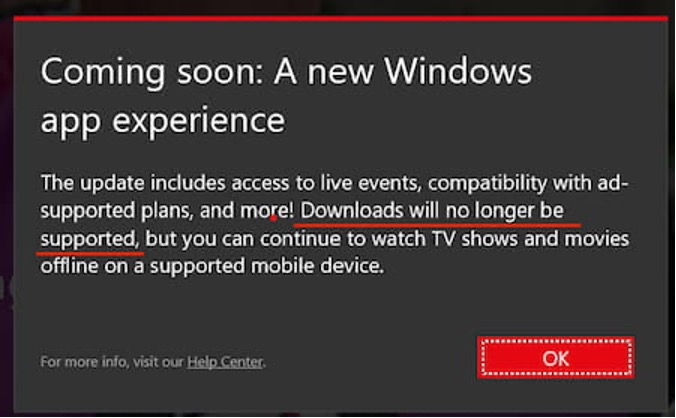
If you are using an older version that previously had a download option, it will prompt you to update, or it may stop working altogether.
Can You Download Netflix Movies on MacBook / Mac?
Mac users have never had a native Netflix app. They have always been restricted to streaming via web browsers like Safari or Google Chrome, which do not support offline saving.
Can You Cast Netflix Downloads from a Phone to a Laptop?
Many users try to download Netflix movies on their mobile devices and then cast or mirror their phone screen to their laptop.
However, this method does not work. Netflix uses strict High-bandwidth Digital Content Protection (HDCP) protocols. When you try to mirror or stream offline downloads using AirPlay, Chromecast, or an HDMI cable to another screen, the app activates its digital rights management (DRM) protection. As a result, you will see a black screen with no video, although you may still hear the audio and see the playback controls.
In conclusion, if you want to watch Netflix movies offline on a computer, it is more practical to download them directly to your laptop.
How to Download Netflix Movies on Laptop (Windows & Mac)
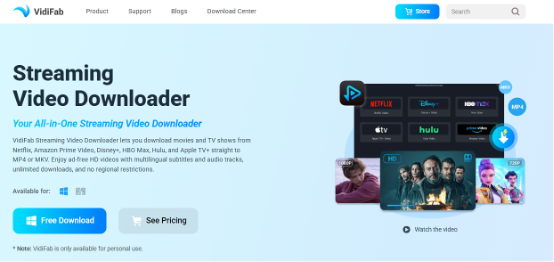
Before getting started, you’ll need a reliable Netflix video downloader. VidiFab Streaming Video Downloader is a desktop tool that lets you download movies and TV shows from Netflix and other popular streaming services for offline viewing. It works on both Windows and Mac and offers several useful features for users who want more flexibility than the official Netflix app.
Key Features of VidiFab Streaming Video Downloader
- Download Netflix Videos as MP4 or MKV: Unlike downloads from the Netflix app, these files can be played on various devices and media players without needing the Netflix app.
- Preserve Up to 1080p Video Quality: VidiFab extracts and maintains the original Full HD 1080p resolution for supported Netflix videos, bypassing the 720p limit found in some browser streams.
- Enjoy an Ad-Free Viewing Experience: Even with Netflix’s ad-supported plan, videos downloaded through VidiFab are saved without ads.
- Keep Multilingual Audio and Subtitles (Even in Free Version!): VidiFab retains multilingual audio tracks and subtitles available on Netflix. It supports both embedded subtitles and separate subtitle files. For audio, you can receive surround 5.1 DD+ and AAC audio when available.
- Download at Up to 7X Faster Speed: For instance, downloading a 2-hour Netflix movie may take only about 15–20 minutes with a stable internet connection, rather than the full 2 hours of playback time.
- Keep Your Downloads Without Expiration: Videos downloaded with VidiFab are stored locally on your computer, allowing you to keep and watch them anytime without worrying about expiration.
How to Download Netflix Movies on a Laptop with VidiFab
Follow this step-by-step guide to download Netflix movies on a laptop using VidiFab Streaming Video Downloader:
Step 1: Install VidiFab and Sign In to Netflix
Download and install VidiFab Streaming Video Downloader on your Windows or Mac laptop. Open the software, click the menu icon, go to Preferences, and select Download. Choose your output format as MP4 or MKV. You can also set video encoding, quality, audio channel, and the output folder for downloads. After adjusting these settings, click OK to save.
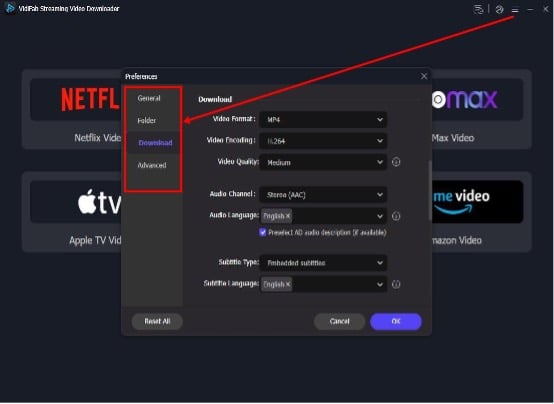
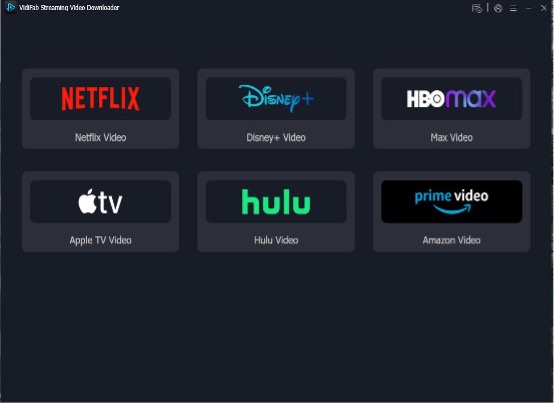
Return to the main interface, select Netflix from the list of supported streaming services, and sign in to your Netflix account using the built-in browser to access available movies and shows.
Step 2: Find the Movie or Show to Download
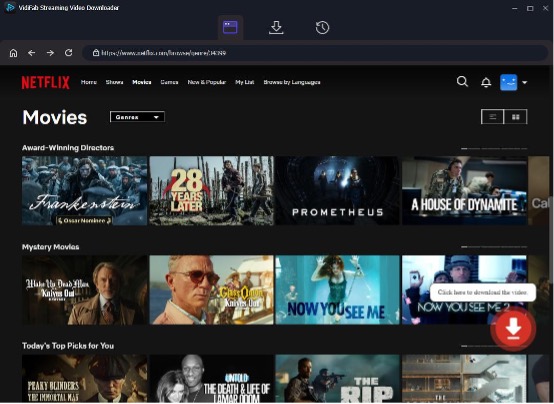
Navigate through the Netflix library in VidiFab or paste the URL of a specific title into the search bar. Open the desired movie or show, and VidiFab will automatically analyze it, displaying a red download button in the bottom right corner. Click this button to open the download configuration window.
Step 3: Customize Download Settings
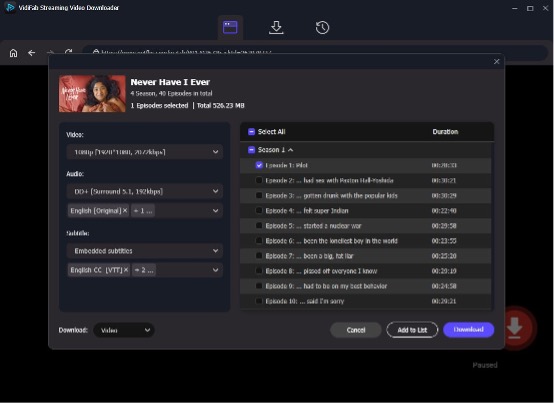
Select your preferred video resolution. You can also choose audio languages and quality. Additionally, set your subtitle language and format, opting for either embedded subtitles or separate subtitle files.
Step 4: Download and Watch Offline
Click the Download button to begin saving the video to your laptop. You can download Netflix titles at speeds up to 7X faster than real-time playback. After the download finishes, click the folder icon next to the title. VidiFab will show you the downloaded Netflix videos stored on your computer.
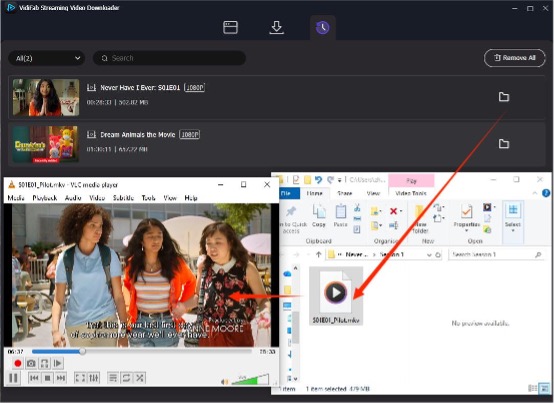
You can now play the video and watch it offline on your Windows or Mac laptop.
FAQs About Downloading Netflix Movies on Laptop
Is It Legal to Convert Netflix to MP4 for Offline Viewing?
Yes. It is safe and legal under copyright “Fair Use” guidelines to save Netflix videos to MP4 as long as you keep an active subscription and use the files strictly for personal, non-commercial offline viewing.
Can I Play Downloaded Netflix Videos on Other Devices?
Yes, if the videos are saved as regular video files such as MP4 or MKV. You can freely transfer and play it on any phone, tablet, TV, or gaming console.
Can I Watch Netflix Downloads After Canceling My Subscription?
Yes, if you download the video using third-party downloaders like VidiFab. Standard video files, such as MP4, are stored permanently on your local hard drive, so they won’t expire or require an active account status, even if you cancel Netflix.
Does Downloading Netflix Videos via VidiFab Consume My Account’s Download Limit?
No. VidiFab does not use Netflix’s in-app download feature, so it does not consume the download limit of the Netflix app.
How Can I Play Downloaded Netflix Videos on a Laptop?
Simply double-click the downloaded MP4 or MKV file to play it instantly using any built-in laptop media player like VLC, Windows Media Player, or QuickTime on Mac.
Wrap-Up: Ready for Your Next Offline Adventure?
Downloading Netflix movies on a laptop can be challenging because the official offline options are limited. Windows users no longer have access to Netflix downloads through the app, and Mac users do not have an official Netflix app.
With VidiFab Streaming Video Downloader, you can save Netflix movies and shows on your laptop for offline viewing with high-quality video, flexible subtitle options, and supported audio tracks. Whether you are traveling or want to watch without an internet connection, downloading Netflix content gives you more freedom and convenience.
