
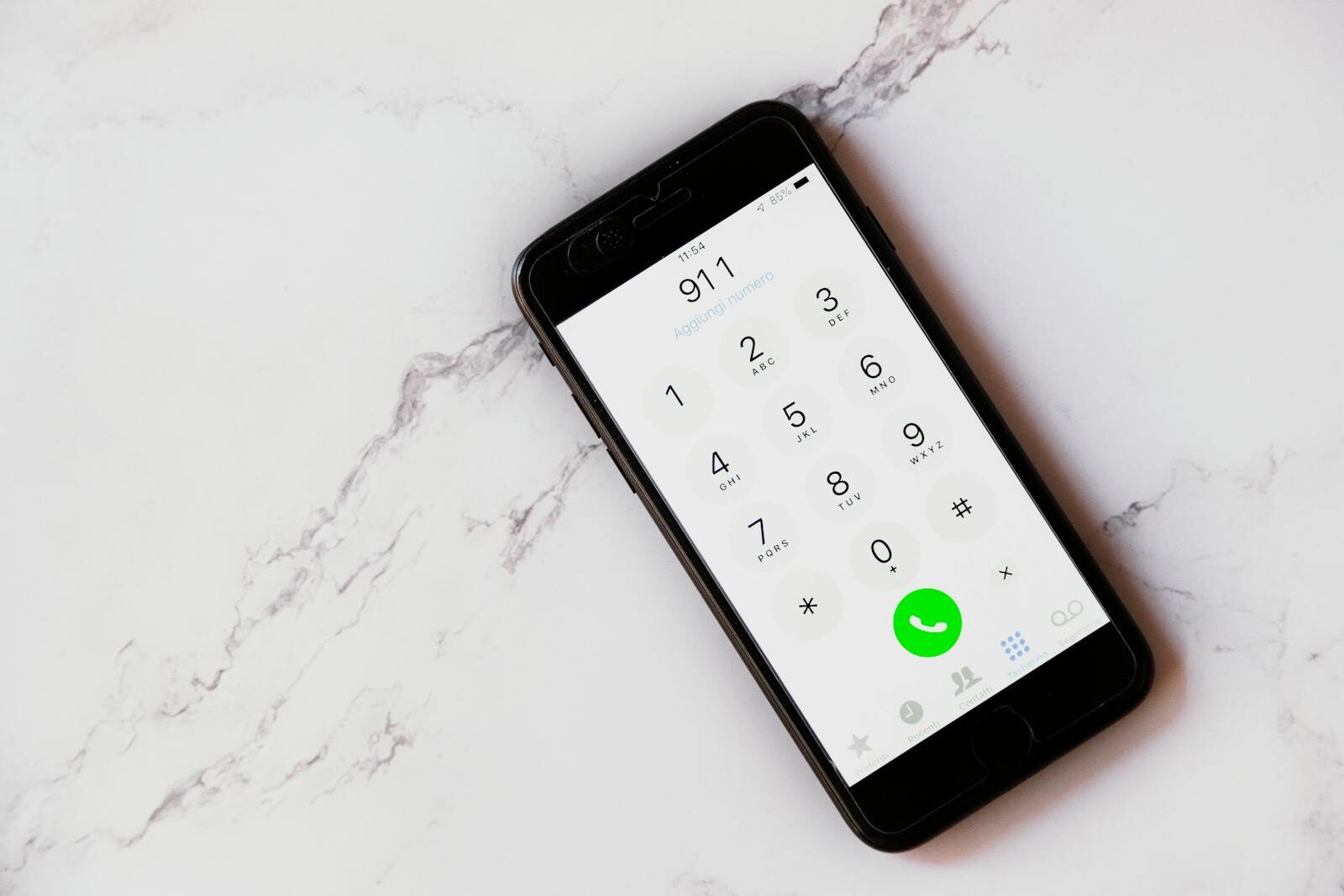
When your phone suddenly displays iPhone SOS only, it can be stressful—especially if you rely on your device for communication and navigation. This message indicates that your iPhone is connected to a cellular network but can only make emergency calls. While this can happen anywhere, it’s most common in areas with poor coverage or when your SIM card or settings are misconfigured.
In this detailed guide, we’ll cover everything you need to know about the iPhone SOS only mode: what it is, why it happens, and how to solve it quickly.
Understanding iPhone SOS Only Mode
The SOS only status on your iPhone is a built-in safety feature. Even if your carrier’s network is unavailable, your device will try to connect to any available network to allow emergency calls.
This feature ensures that you can always reach local emergency services like police, fire, or medical help—even if your normal service provider is unavailable.
Common Reasons for iPhone SOS Only Mode
Several factors can trigger this message:
- Poor Network Coverage – If you’re in a rural or remote area with limited towers.
- Carrier Issues – Temporary outages or maintenance by your provider.
- SIM Card Problems – A damaged, misaligned, or incompatible SIM.
- Software Bugs – Updates or glitches may cause temporary network errors.
- Network Settings – Incorrect configuration can block proper connectivity.
- Roaming Restrictions – When traveling abroad without roaming enabled.
How to Fix iPhone SOS Only Issues
Here are proven troubleshooting steps:
1. Check Your Coverage Area
Move to an open space or closer to a populated area. Buildings, basements, or rural locations often limit signal strength.
2. Toggle Airplane Mode
Turn Airplane Mode on for about 10 seconds, then off. This refreshes your iPhone’s connection to the network.
3. Restart Your iPhone
A simple restart often clears temporary bugs or signal hiccups.
4. Reseat or Replace SIM Card
Eject your SIM card, clean it gently, and reinsert it. If the problem persists, test with another SIM to rule out hardware damage.
5. Update Carrier Settings
Go to Settings > General > About. If a carrier update is available, install it immediately.
6. Reset Network Settings
Navigate to Settings > General > Transfer or Reset iPhone > Reset > Reset Network Settings.
This clears saved Wi-Fi networks, passwords, and VPNs but often resolves SOS only errors.
7. Update iOS
Keeping your system updated ensures bug fixes and better carrier compatibility.
8. Contact Your Carrier
If none of the above works, call your service provider. They can check for outages, account restrictions, or provisioning errors.
iPhone SOS Only While Traveling Abroad
If you encounter SOS only outside your home country:
- Ensure Data Roaming is enabled.
- Check if your plan includes international roaming.
- Consider purchasing a local SIM or an eSIM plan for better coverage.
- Some regions may not support your carrier’s bands—research compatibility before traveling.
Preventing iPhone SOS Only Problems
While not all cases can be prevented, you can reduce the risk by:
- Keeping iOS and carrier settings up to date.
- Using a reliable carrier with strong coverage in your region.
- Regularly checking your SIM card for wear or damage.
- Carrying a backup eSIM for travel or emergencies.
When to Seek Professional Help
If your iPhone is stuck on SOS only despite following all steps:
- Apple Support can check for device hardware issues.
- Carrier Support can confirm if your account is active and properly configured.
- Repair Centers can help if your SIM reader or antenna is faulty.
iPhone SOS Only vs. No Service
It’s important to differentiate between the two:
- SOS Only: You can still make emergency calls through another available network.
- No Service: Your iPhone cannot connect to any network at all—not even for emergency calls.
Knowing the difference helps you respond correctly in urgent situations.
Tips for Emergency Preparedness
Because iPhone SOS only often occurs unexpectedly, it’s wise to:
- Save offline maps for navigation.
- Keep emergency contacts accessible.
- Use Wi-Fi calling if your carrier supports it.
- Consider portable network boosters if you frequently travel to remote areas.
Final Thoughts
Seeing iPhone SOS only on your screen doesn’t always mean something is wrong with your device. It’s usually a temporary issue related to coverage, carrier settings, or SIM configuration. By following the troubleshooting steps above, you can often restore full service quickly.
If the issue persists, contacting your carrier or Apple Support is the best way forward. With the right preparation and awareness, you can minimize disruptions and ensure your iPhone remains reliable when you need it most.
