
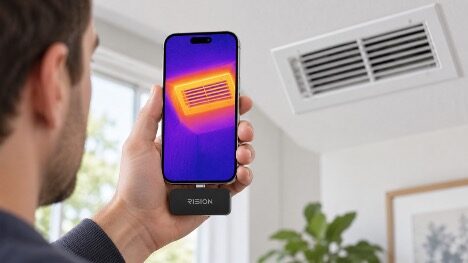
An iPhone can take sharp photos and video, but its normal camera cannot map heat across a surface. That job needs a thermal sensor, which detects infrared energy rather than visible light.
Connect that sensor through USB-C and the iPhone becomes its screen, controller, and storage device. Users can then check heat patterns on electronics, vents, windows, and other visible surfaces.
Thermal Imaging Adds a Different Kind of Information
A thermal camera turns infrared readings into colors. The colors make patterns easy to spot, but they have no fixed meaning. Red in one image may be cooler than yellow in another if the scale changed.
Numbers matter more than the color palette. The best scans compare two like items. You might check one vent against another, a window before and after adding a seal, or a device at idle and under load.
USB-C Makes Direct-Connect Sensors More Practical
iPhone 15 and later models use USB-C for charging and data. The port also works with supported accessories. Since the phone acts as the screen, the full setup can stay small.
The right plug does not promise that the sensor will work. It may need a certain iPhone, iOS version, app, plug direction, or amount of power. A thick case may also keep the plug from going in all the way.
Everyday Uses Start With Comparison
At home, thermal patterns may help locate areas to check around windows, doors, vents, and exterior walls. For electronics, they can show how heat spreads across a laptop, charger, or desktop PC. Vehicle owners may compare matching vents or wheels under controlled conditions.
These observations do not establish the cause. A cool wall patch could relate to airflow, insulation, shade, or evaporation. A warm connector may justify an inspection, but it does not prove that the connection is defective.
A Thermal Camera Cannot See Through Walls
Some people mistake thermal imaging for X-ray vision. The camera only reads heat from the surface it can see. A pipe behind a wall may warm the paint, for example. The scan shows that warm patch, not the pipe itself.
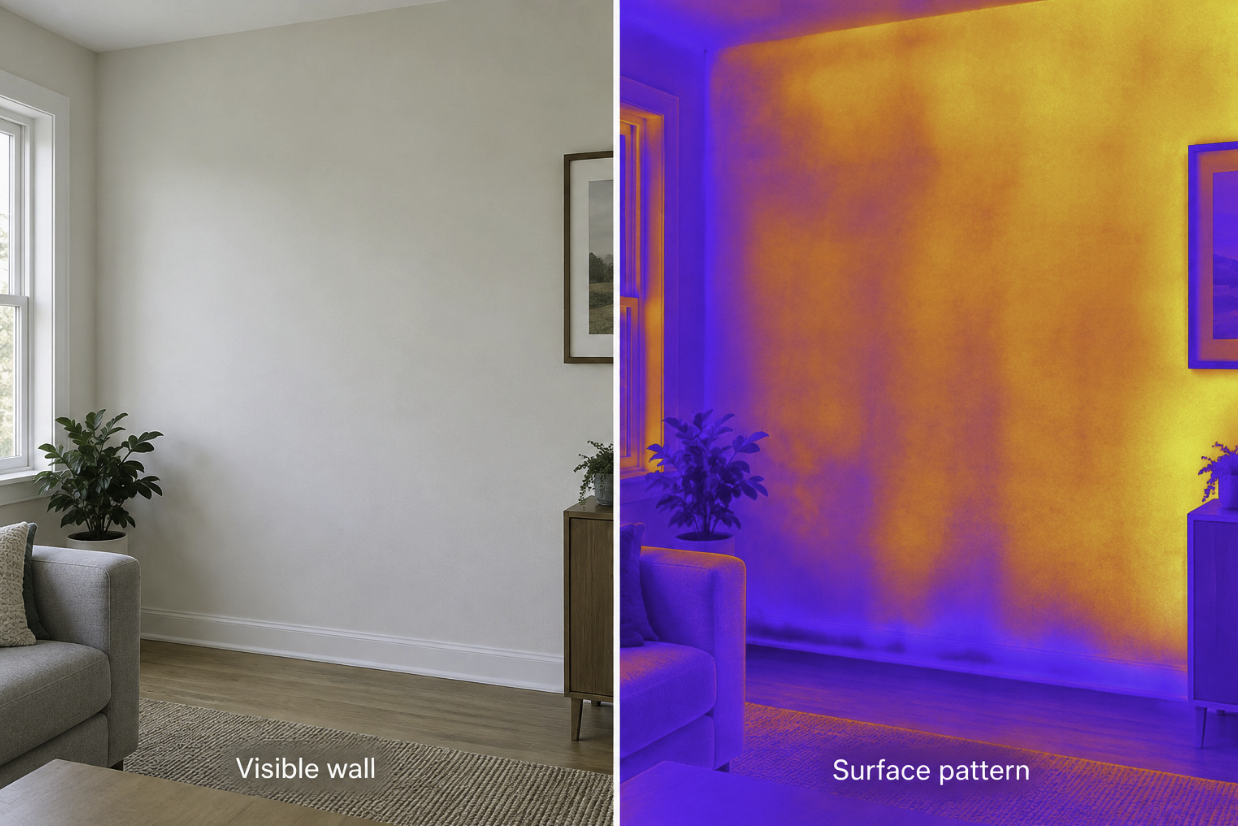
Glass and shiny metal can reflect heat from the room. Change the camera angle if a hot spot looks out of place. A spot that moves may be a reflection.
Check the App as Carefully as the Hardware
Before buying, check the supported iPhone models and iOS version. Make sure the plug fits through your case. Then review the power needs, measuring tools, and export options. A good app should make it easy to read the scale, save images, and compare scans.
The product details for the Rision Thermal camera for Smartphone give buyers one place to check these points before adding a thermal sensor to an iPhone. Its AI dual-light fusion aligns thermal data with visible detail from the iPhone camera, making a heat pattern easier to place in the scene.
Compatibility is part of the buying decision, not a footnote. Confirm the exact phone and connector version, then make sure the app still supports the tools you expect to use. A thermal accessory is only convenient when the physical connection and the software workflow both fit the phone you already own.
A useful thermal accessory does more than produce colorful images. It helps the user make a fair comparison and decide what to examine next. Used carefully, USB-C thermal imaging can add a practical new sense to the iPhone without pretending that the phone can provide every answer.
