

Large story projects can generate a lot of files, including characters, scenes, videos, images, text, and audio files. With individual downloads, there’s additional work post-creative decisions that are repetitive. Pippit brings creation, review, organization, and export together in a single workflow! Bulk download provides a way to transfer complete resources to a system for editing, publishing, collaboration, or archiving. This is helpful if multiple episodes create related media that needs to remain easily accessible.
Understand What Assets Can Accumulate During Story Creation
Many media can be used for a single Pippit project as it unfolds. Roles can set character references, which can be used to give a consistent visual direction in later scenes. Scene assets can be used to specify locations, backgrounds, lighting, weather, camera angles, actions, and atmosphere. Generated images, videos, text, audio and episode outputs can be included in projects. The volume of assets is a natural consequence of episode projects and grows over many chapters. There may be related characters, scenes and supporting media for each chapter. Retrieval is easier due to the centralised creation, as connected assets are all within one visual workspace. Pippit says that Canvas is a space for roles, scenes, images, videos, texts and sounds.
Why Bulk Download Matters in Multi-Scene Projects
If you want to export files one by one, it can be tedious. When multiple episodes or related assets are prepared, bulk retrieval can be used to minimize the friction. This is important if the files need to be transferred into editing software or publishing folders. It can also be used for team storage and campaign planning. Many connected outputs can be added to an AI movie project for organized handoff. By reviewing first, unwanted versions will not be added to the final asset set. Bulk export is a cleaner way to transition from generation to post-production. Pippit enables bulk download of story media that was completed later.
Organize and Review Assets Before Exporting
Initial review of the project will distinguish useful output from drafts. The story studio Canvas provides for intentional review, where assets are clustered together. Review and check character references for consistency before approving the episode collection. Look for missing information, unwanted differences, or inconsistencies in visual direction in scenes. Look through audio and text for any missing pieces and relevance to the episode. Refine prompts when the asset is not quite in the setting, mood, or character that it was intended to be. Store draft versions in a separate location from assets used downstream. Pippit enables you to update, add new versions, group and refine before downloading.

Steps to Download All Your Assets at Once Through Story Studio
Pippit offers a seamless workflow with which to create roles, scenes, videos, images, text, and audio. This is a workflow that a marketer can use more than just an ad maker task.
To prepare and export a multi-episode project, follow these steps:
Step 1: Prepare your Story Studio project
1. Sign up for Pippit using your Google, TikTok, or Facebook account information.
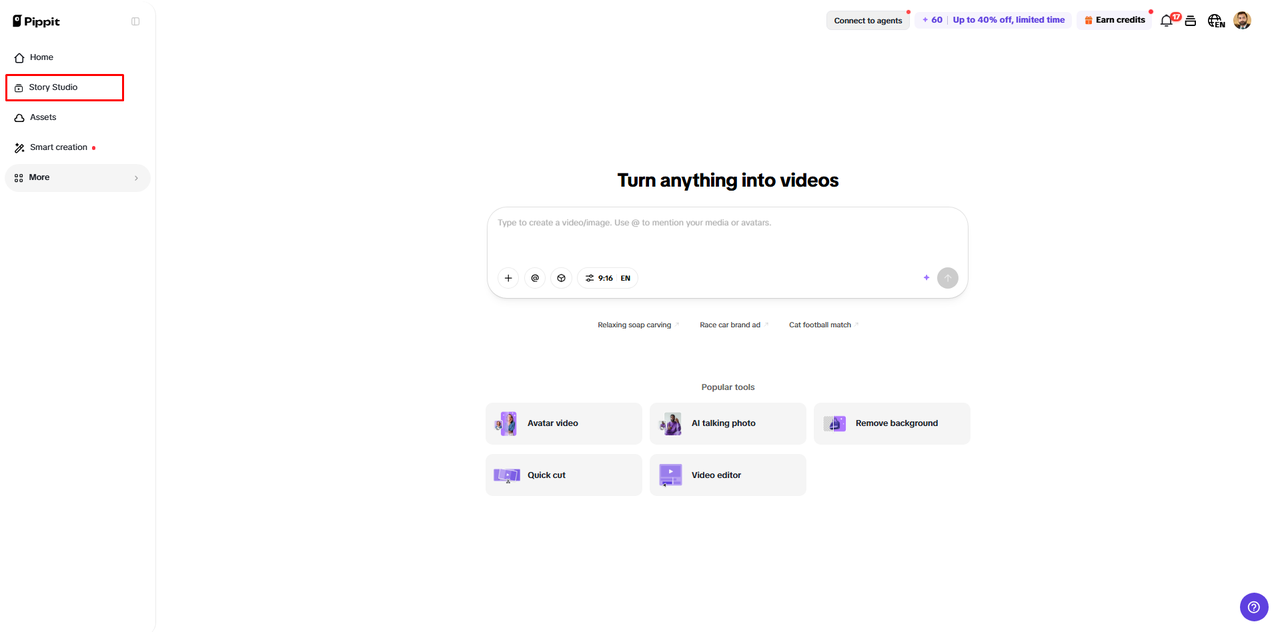
2. Find “Story Studio” in the left vertical menu on the home page and click it to enter the workspace.
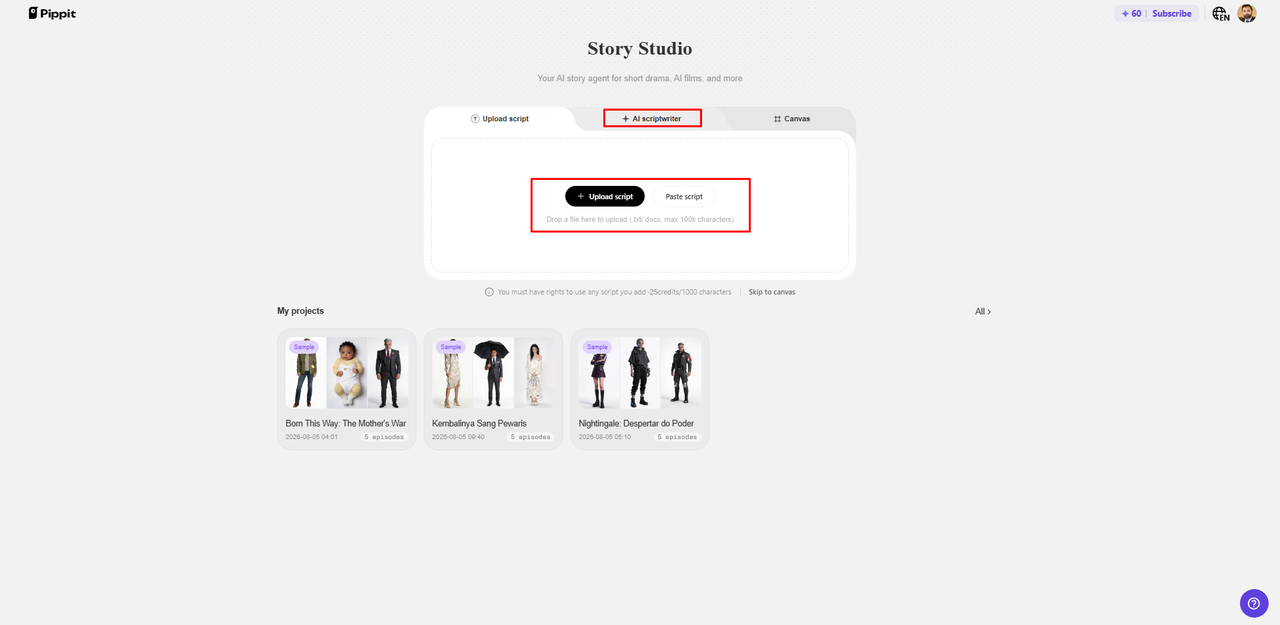
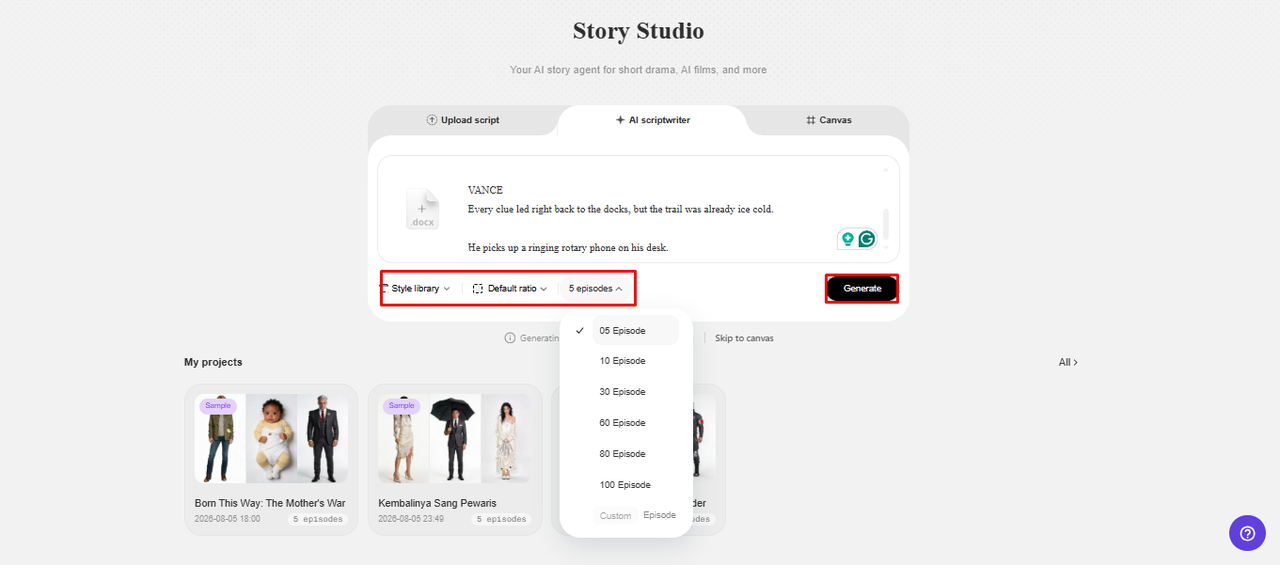
3. Upload your script with “Upload script” or enter it using “Paste script”.
4. You can also create a script from scratch with the “AI scriptwriter” available in the top menu.
5. Pick a suitable story style through “Style library”, located at the bottom left of the dialogue box.
6. Use “Default ratio” to select your custom aspect ratio. Then choose the number of episodes from “Episodes”.
7. Click “Generate” to let AI generate your script.
Step 2: Generate your complete asset set
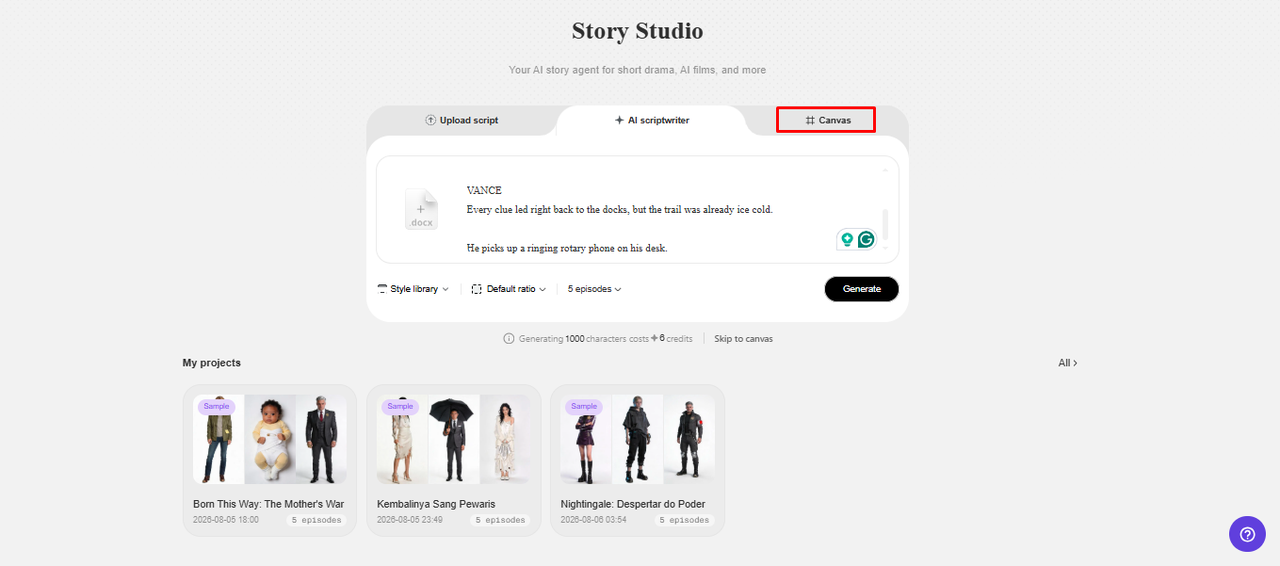
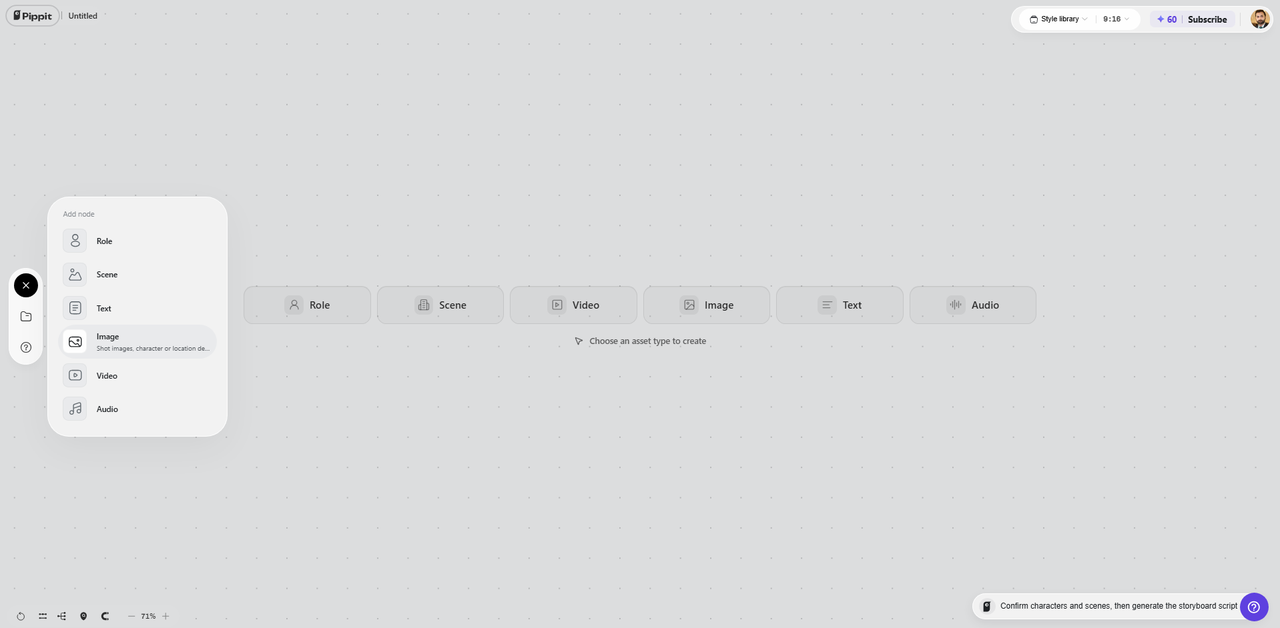
1. Open the “Canvas” tab to add images, scene videos, and audio. You can also define characters and assign their roles for better control over the story video.
2. Write prompts for each story section. Include character look, setting, lighting, camera angle, style, voice tone, story mood, and product context to guide the generated assets.
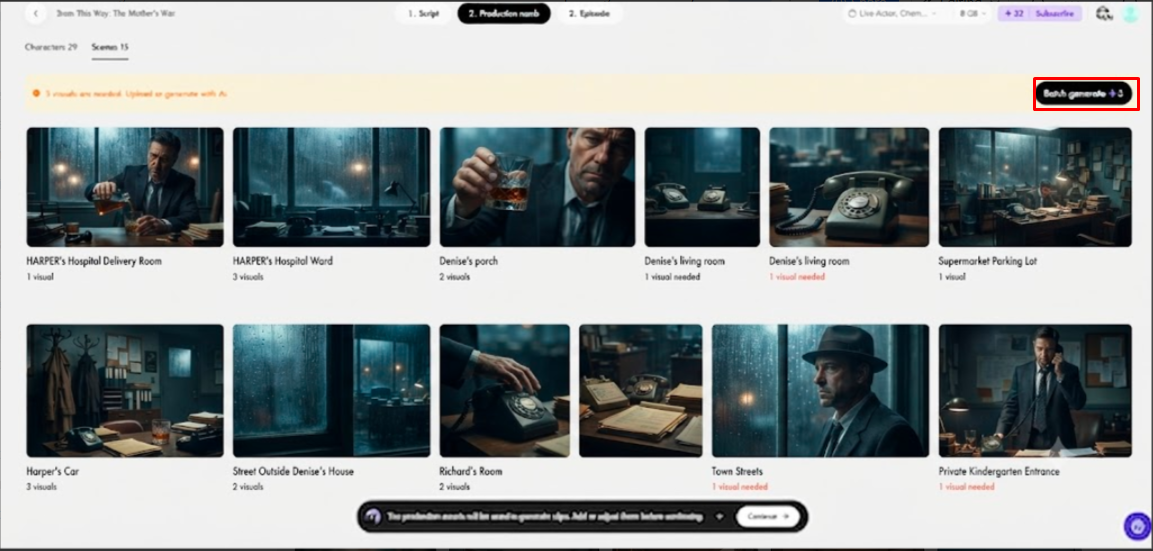
3. After assigning roles and generating the characters and scenes, click “Batch generate” to generate the episodes.
Step 3: Download your generated episodes together
1. Review the episodes first. Edit the characters, roles, scenes, audio, or other elements if further refinement is needed.
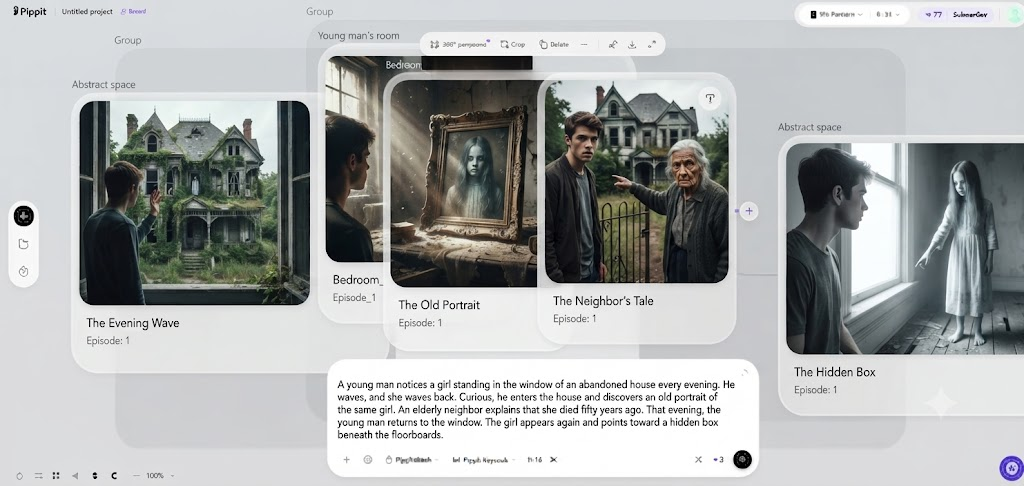
2. When you are satisfied with the results, click “Select all”. Then select “Download” to bulk download the generated episodes and save them to your device.
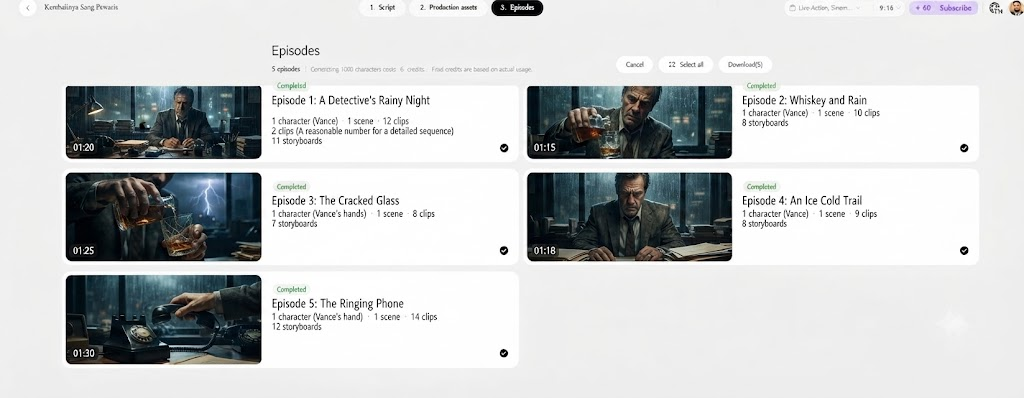
Use Select All for a Faster Export Workflow
Select all makes the final selection easy if multiple episodes have been generated. It cuts down on the repetitive work and selection of many items. However, after careful episode review, the complete selection is best. Verify scenes, characters, audio, etc., before checking all the boxes. Refining should take place in the lead-up to the last download action. This method allows the exported collection to be similar to the intended production state. Pippit explains bulk download, which is for saving completed story media.
Prepare Downloaded Assets for the Next Production Stage
When assets are downloaded, it is more useful if each asset has a defined purpose. Moreover, with clear preparation, there is also less confusion when multiple individuals are working on one project. These workflows are typical targets:
-
Video editing: Transfer episodes or clips to an editing workflow.
-
Content publishing: Structure completed media for planned social publishing.
-
Campaign planning: Gather story materials and elements that promote a story.
-
Team collaboration: Download media files in shared project folders.
-
Archive management: Store finished assets in organized folders for future use.
-
Asset handoff: Deliver files to creative, editing, or publishing teams in groups.
Keep Bulk Downloads Organized After Export
Organize downloaded files by project, episode, asset, or by use. Make logical folders before assets are imported into another workflow—consistent naming of characters, scenes, episodes, versions, and final outputs. Label to differentiate Episode 01 scenes from Episode 02 scenes. Keep drafts and finished products in different places so that drafts don’t come back. A structured media library also facilitates future revisions. Organizations remain searchable and comprehensible between teams.
Avoid Common Mistakes During the Final Download Stage
Downloading prior to review may result in the retention of unwanted, incomplete, or outdated content. Check if the episode is complete before choosing the entire collection. Organizing assets should start at the time of creation and not after they are downloaded. Prompt revisions should be completed prior to final export. Weaker drafts should be replaced with corrected versions prior to selection. Episode refinements should occur prior to the final download step as well. Bulk downloading makes retrieval easier, but does not eliminate the need for quality control. A disciplined review prevents unnecessary mistakes in the final set of assets.
Conclusion
No more “afterthought” downloading – efficient export completes the story workflow. Pippit integrates creation, viewing, editing, organizing, and retrieval of bulk data in a single environment. When projects include more than one episode and associated media, Select all can be helpful. Organized downloads enable editing, publishing, collaboration, campaign planning, and archiving. Taking care of this review guarantees that the exported collection consists of intentional, production-ready assets. Bulk downloading thus offers a practical final step in story projects assisted by AI.
