
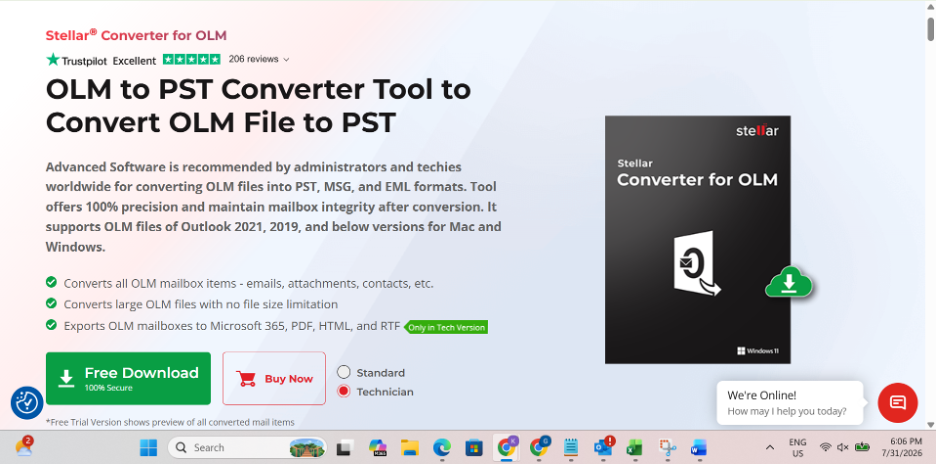
Switching from Outlook for Mac to Outlook for Windows turned out to be more complicated than I expected. While moving to a new Windows laptop was straightforward, transferring my Outlook mailbox wasn’t. Outlook for Windows doesn’t support OLM files, which meant I needed a reliable way to convert my mailbox into a PST file.
After trying a couple of manual approaches that either failed or seemed too risky for my business emails, I decided to test Stellar Converter for OLM – Technician Edition. I used it to migrate my complete Outlook mailbox from macOS to Windows, and here’s my honest experience.
Why I Chose Stellar Converter for OLM
My Outlook mailbox contained several years of work emails, attachments, contacts, calendars, and custom folders. Losing even a small portion of that data wasn’t an option.
I looked at several OLM converters before deciding. Some tools had limited functionality, while others had mixed reviews about preserving folder structures or handling large mailboxes. Stellar Converter for OLM stood out because it supports complete mailbox conversion and offers additional export options for Microsoft 365 and Exchange Server
Installation and User Interface
Downloading and installing the software was straightforward. The setup completed in just a few minutes, and I didn’t need any technical knowledge to get started.
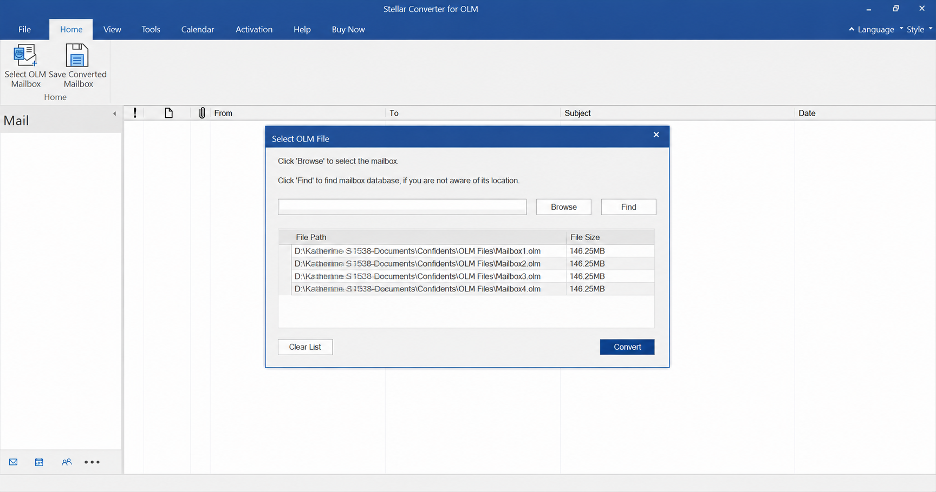
The interface is clean and uncluttered. Everything is clearly labelled, making it easy to locate an OLM file, scan it, preview the mailbox, and export the data. Even someone using this type of software for the first time shouldn’t have much trouble navigating it.
Converting My OLM File
The conversion process was simple:
- Selected my OLM file.
- Started the scan.
- Previewed the mailbox contents.
- Exported everything as a PST file.
The preview feature was particularly useful because it let me verify my emails, contacts, calendars, tasks, notes, and attachments before saving the converted file. This gave me confidence that the conversion was working correctly.
After exporting the PST, I opened it in Outlook for Windows. My mailbox loaded without errors, and everything appeared to be in place.
What Worked Well
Folder Structure Was Preserved
One thing I appreciated was that my folder hierarchy remained exactly the same after conversion. Years of organised email folders were preserved, which saved me from manually reorganising everything.
No Missing Emails or Attachments
I randomly checked emails from different years, including messages with large attachments. Everything opened normally, and attachments remained accessible.
Contacts and Calendars Were Included
Unlike some basic converters that only focus on emails, Stellar also converted my contacts, calendars, tasks, and notes. Since I use Outlook for scheduling meetings, this was an important advantage.
Good Performance with a Large Mailbox
My mailbox wasn’t particularly small, yet the software completed the conversion without freezing or crashing. The scanning process took some time, but it was stable throughout.
Beginner-Friendly Experience
I never had to consult a manual or search for tutorials. The entire workflow is intuitive enough for users with limited technical experience.
Features I Found Useful
During my testing of the Technician Edition, these features stood out:
- Converts OLM files to PST without changing the original data.
- Maintains folder hierarchy and email formatting.
- Converts emails, contacts, calendars, tasks, journals, and notes.
- Preview option before exporting.
- Supports large OLM files.
- Batch conversion for multiple OLM files.
- Direct export to Microsoft 365 and Live Exchange Server.
- Compatible with modern Outlook versions.
Things That Could Be Better
No software is perfect, and Stellar Converter for OLM also has a few limitations.
The Technician Edition is designed more for IT professionals and businesses than occasional home users. If you only need to convert one small mailbox, the price may feel higher than expected.
Additionally, the free version mainly serves as an evaluation tool. You’ll need the licensed version to complete a full conversion.
These aren’t major drawbacks, but they’re worth considering before purchasing.
Who Should Consider It?
Based on my experience, I think this software is best suited for:
- Professionals moving from Outlook for Mac to Outlook for Windows.
- Businesses migrating employee mailboxes.
- IT administrators handling multiple mailbox conversions.
- Users who want to avoid manual migration methods.
- Anyone working with important Outlook data that cannot be lost.
Stellar Online OLM to PST Converter – A Quick Alternative
I also tried Stellar’s Online OLM to PST Converter before installing the desktop software to see how it compared; the free online version is a convenient choice if you only have a small OLM file and don’t want to install any software.
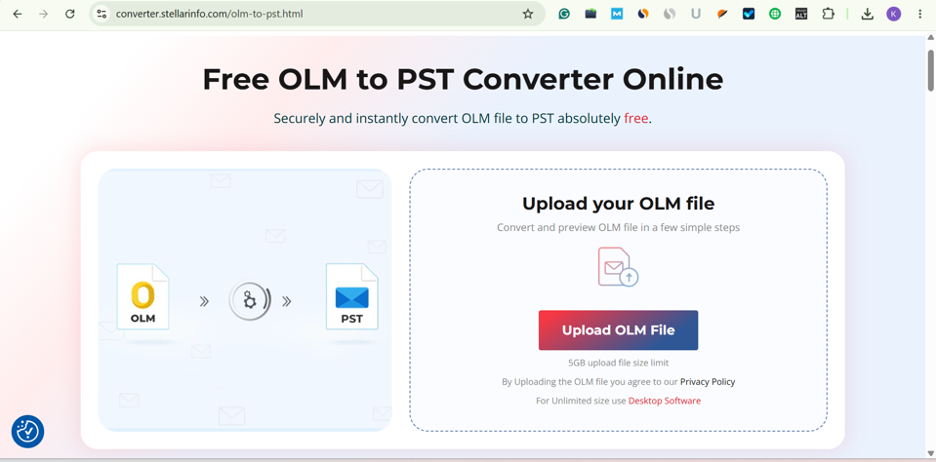
It’s a simple process: I went to the website, uploaded my OLM file, and the conversion then began automatically as soon as the upload was finished. There was no need to carry out any complicated settings or technical procedures.
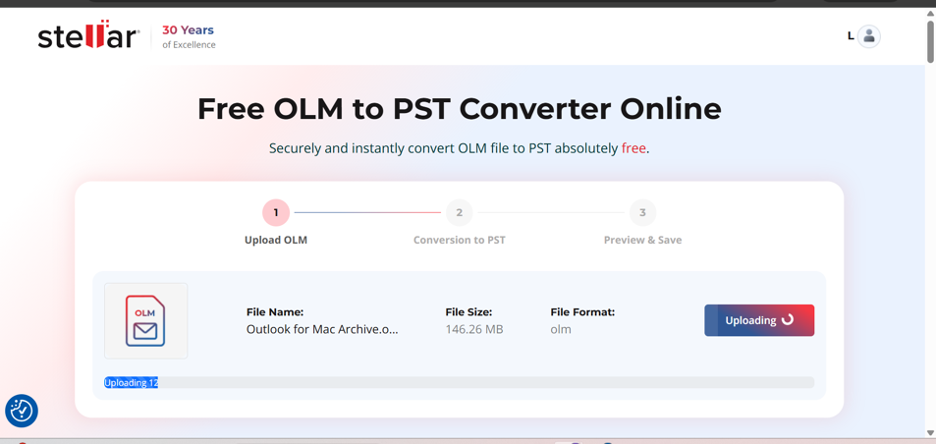
In the first instance, I used a small Outlook for Mac archive which was less than 150 MB. The conversion was completed in a matter of minutes, and I was able to preview the structure of mailbox items before downloading the PST file. The folder structure, email formatting, sender details, attachments, and timestamps were all preserved correctly.
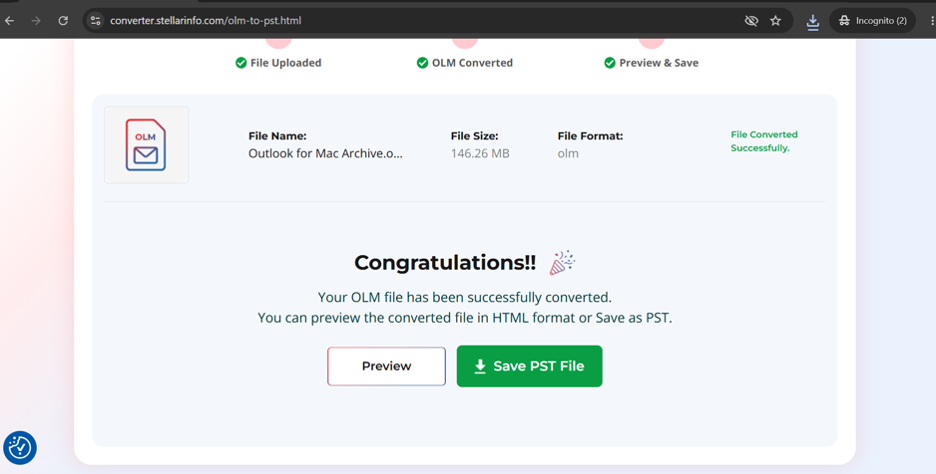
The folder structure, email formatting, sender details, attachments, and timestamps were all preserved correctly.
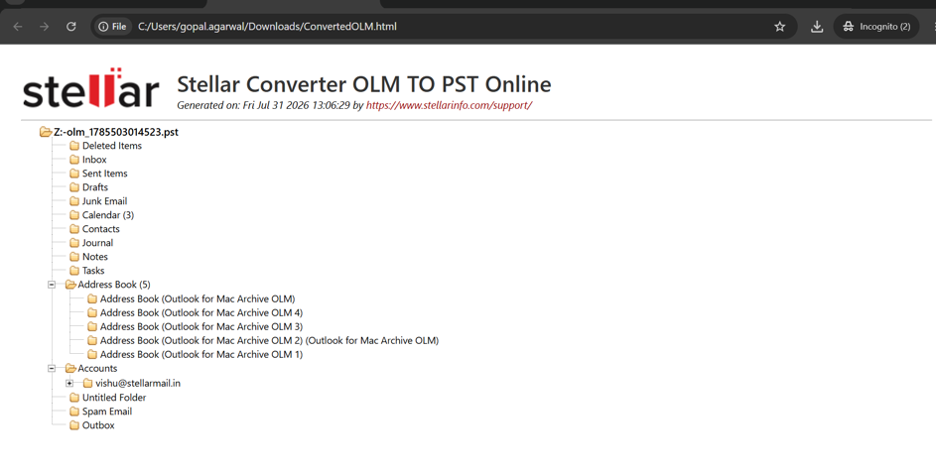
One thing I really enjoyed was the fact that all the functionality works directly in the browser; there was no need to install Outlook or any other software, which meant it was perfect for people who only needed to carry out a one-off conversion.
What I Liked
- No software installation required.
- You can convert OLM files for free if they are 100 MB or less.
- A browser-based interface compatible with both Windows and Mac.
- It retains the emails, attachments, the folder hierarchy, and the metadata.
- Files can be uploaded securely using SSL encryption, and the converted files will be deleted from the server after 24 hours.
Where It Has Limitations
The online converter works most effectively with smaller mailboxes since the free version allows only files of 100 MB or less, whereas the Premium plan raises the limit to 5 GB per file. When you are migrating a large Outlook archive or several OLM files, it is better to use the desktop software as this one does not depend on internet upload speeds and provides more advanced migration features.
My Take
For people who use email only occasionally and have a small mailbox, the online converter is a good starting option since it is quick, easy to use, and doesn’t require any installation. On the other hand, when dealing with larger mailboxes, business migrations, or anyone moving several Outlook profiles, I found the desktop version much more practical, as it offers greater flexibility, better performance, and more advanced export options.
Final Verdict
After completing my migration, I was satisfied with the results. The software handled my mailbox accurately, preserved the original folder structure, and transferred emails, attachments, contacts, and calendars without noticeable issues.
What impressed me most wasn’t flashy features—it was reliability. Email migration is something most people do only occasionally, but when they do, they need confidence that nothing important will disappear during the process. Stellar Converter for OLM delivered that confidence.
While it isn’t the cheapest option available, it offers dependable performance and a straightforward workflow that can save hours of manual effort. If your Outlook data is valuable and you need a reliable OLM-to-PST conversion tool, it’s definitely worth considering.
