
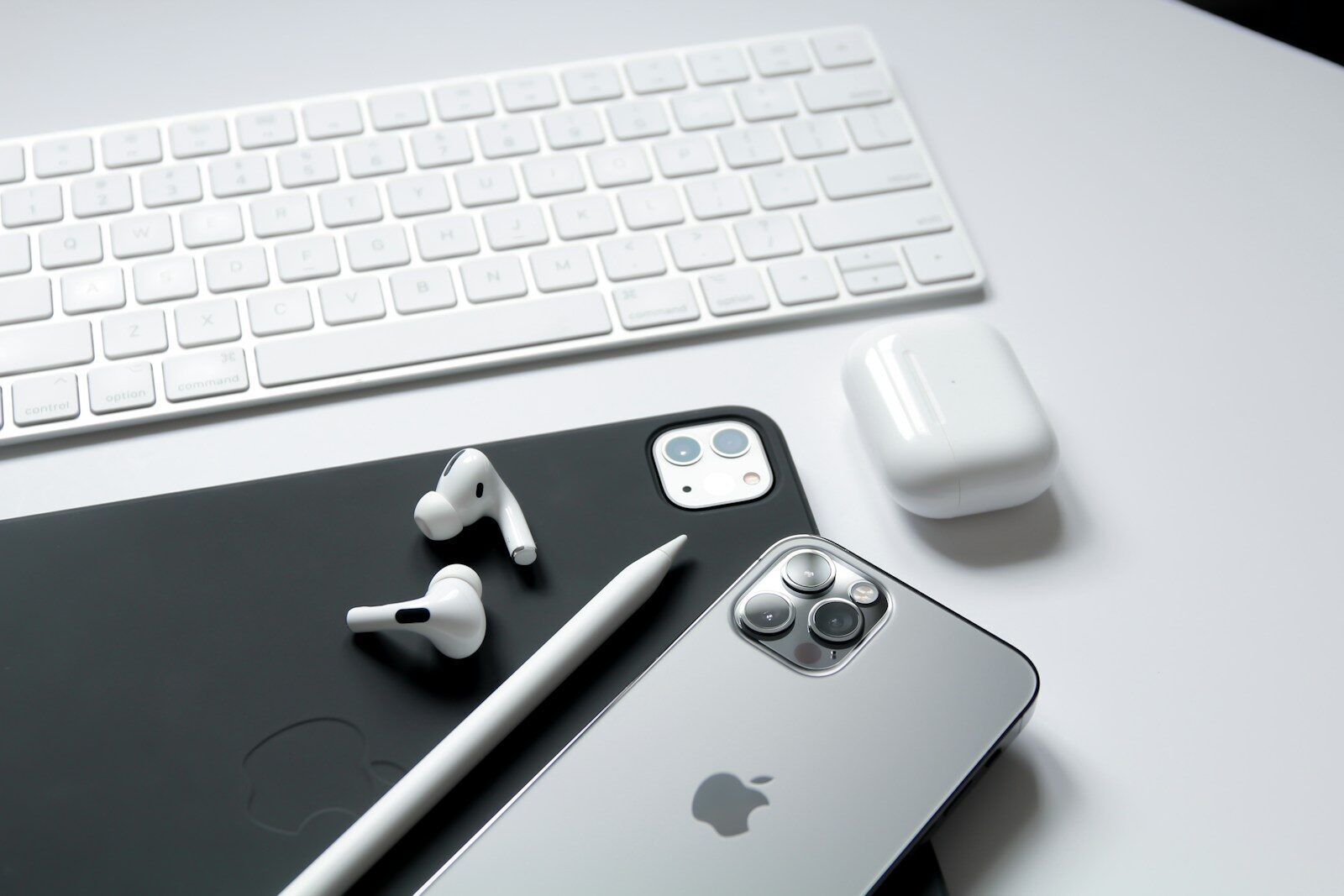
Apple devices arrive loaded with significantly more capability than the majority of users ever discover or take full advantage of in their daily routines. Every MacBook, iPad, and iPhone includes powerful built-in apps that can change how you work. Most users rely on the basics — Safari for browsing, Messages for texting, and Notes for quick reminders. A powerful set of hidden tools handles video editing and data analysis. This guide takes a careful and focused look at specific Apple tools that, when properly understood and applied in your day-to-day workflow, can meaningfully reshape your daily routine, boost your creative and professional output, and even help you successfully launch a personal or professional project online. If you want practical tips to get more from your Apple hardware in 2026, start here.
Unlocking Creative Potential With Apple’s Built-In Productivity Suite
Pages, Numbers, and Keynote Beyond the Basics
Most people dismiss Pages as a simple word processor, Numbers as a basic spreadsheet app, and Keynote as presentation software that only students use. That perspective misses the mark entirely. Pages supports advanced layout features that rival dedicated desktop publishing programs. You can create newsletters, flyers, and even eBooks with interactive elements – all without spending a penny on third-party software. Numbers, meanwhile, handles pivot-like data summaries, conditional highlighting, and interactive charts that update in real time. Keynote offers cinematic transitions and object animation that professional presenters rely on for polished pitches. Together, these three applications form a creative production hub. If you plan to share your work online, pairing it with properly chosen domain names gives your projects a professional home on the web that people can easily find and remember.
Using Freeform for Visual Brainstorming
Freeform, introduced in recent macOS and iOS updates, deserves special attention. Think of it as an infinite digital whiteboard where you can pin images, sketch diagrams, drop links, and arrange sticky notes. It excels at collaborative brainstorming sessions because multiple participants can edit the board simultaneously via iCloud. Designers use it to build mood boards. Project managers map out timelines. Writers plot story arcs. The app syncs across every Apple device tied to your account, meaning an idea captured on your iPhone during a morning commute appears instantly on your Mac at the office. For anyone who has relied on scattered notebooks or disconnected apps, Freeform brings everything into a single visual space. We have previously covered five standout apps that can elevate your daily output, and Freeform fits right alongside those recommendations.
How Native Apple Features Speed Up Your Daily Digital Workflow
Shortcuts and Focus Modes Working in Tandem
The Shortcuts app remains one of Apple’s most underrated offerings, despite the fact that it provides users with remarkably powerful automation capabilities that many people have yet to fully discover and appreciate. It lets you create automated sequences activated by one tap or voice command. Siri can automate your entire morning routine by voice. That whole sequence takes only seconds to set up and saves you minutes each day. Combining Shortcuts with Focus Modes gives you precise notification control. A “Deep Work” Focus Mode can silence all social media alerts, restrict incoming calls so that only your team members can reach you, and display exclusively work-related apps on your Home Screen. A “Creative” Focus Mode could instead bring apps like GarageBand, Procreate, and your personal reference library to the foreground, so that your creative tools are immediately accessible when inspiration strikes. These layered configurations eliminate distraction and protect your most productive hours. In a typical week, recovered focus amounts to several hours of productive work otherwise lost to notification noise.
Quick Note and Live Text for Instant Capture
Quick Note lets you swipe from the corner of your iPad or Mac screen to create a note that automatically links back to whatever you were viewing – a Safari page, a Mail message, or a document in Files. That contextual connection means you never lose track of why you jotted something down. Live Text, on the other hand, turns your camera into a scanner that recognizes text in photos, screenshots, and even paused video frames. Spotted a useful quote in a conference slide? Point your iPhone camera at it and copy the text directly. Need a phone number from a business card? Live Text identifies it and offers to dial immediately. These features may seem small individually, but combined, they create a capture system that removes friction between seeing information and acting on it. Our earlier roundup of ten essential Mac applications for stronger productivity highlights additional tools that complement these built-in capabilities perfectly.
Choosing a Memorable Domain Name to Showcase Your Apple-Powered Projects
Once you have built a portfolio, dashboard, or presentation in an Apple app, the natural next step is publishing it online. A strong web address serves as the digital front door to your online presence. It should be short, brand-relevant, and simple enough to spell from memory. When you are selecting a web address, you should, whenever it is reasonably possible to do so, avoid the use of hyphens and obscure or unfamiliar domain extensions, as these elements can make the address harder to remember, more difficult to type accurately, and less trustworthy in appearance. A clean web address inspires trust before a visitor even clicks on the link. Think about how your web address will appear on cards, in emails, or spoken aloud. Clarity is every bit as important as creativity. Combining a polished Apple-created project with a professional online identity creates a credible, lasting impression on collaborators, clients, and audiences.
Four Lesser-Known Apple Tools That Deserve a Spot in Your Routine
Beyond the headline apps, several overlooked features can make a real difference in how you interact with your devices daily. Here are four underrated features that deserve a closer look:
- Dictation with automatic punctuation — Enhanced on-device speech recognition automatically inserts commas, periods, and question marks during dictation.
- Stage Manager for multitasking – Groups open windows into clickable clusters for seamless context switching.
- Apple Music collaborative playlists – Shared playlists let teams curate music together, boosting focus and morale.
- Accessibility features repurposed for general use — Voice Control and Switch Control benefit all users, not just those with disabilities.
Each of these features ships free with your device. No downloads, no subscriptions, no setup wizards. They simply need to be activated in Settings. For those who enjoy expanding their toolkit further, Apple also offers a range of creative accessories designed to complement these built-in capabilities, covering everything from styluses to audio interfaces.
Bringing It All Together: A Personalised Apple Ecosystem That Works for You
The real power of Apple’s platform truly emerges when individual tools stop operating in isolation and instead begin feeding into each other, creating a connected workflow where each application naturally supports and builds upon the others. A sketch that you initially begin in Freeform naturally becomes the layout reference for a Pages document, providing a visual foundation that guides the structure and design of your written content. Data gathered via Shortcuts fills a Numbers spreadsheet, which then refreshes a Keynote chart. A Quick Note connects back to the original research source, ensuring your entire workflow remains traceable from beginning to end. The key is intentional setup. Dedicate an afternoon to configuring Focus Modes, creating your most-used Shortcuts, and sorting Freeform boards by project. That initial investment of time and effort consistently pays off on every single working day that follows, since the systems you have built continue to save you considerable time.
Imagine your Apple ecosystem as a carpenter would view a tidy, well-ordered workshop. Every tool has its proper place, every process follows a logical sequence, and the final result reflects that underlying order. These built-in tools provide a strong foundation for designers, business owners, and everyday users alike. The tools you need are already on your devices, ready for you to begin.
Frequently Asked Questions
How can I sync my Apple creative projects across multiple devices effectively?
iCloud Drive automatically handles most syncing, but you need to ensure all devices use the same Apple ID and have sufficient storage space. For larger files like video projects, consider using external storage or selective sync options. Always verify that auto-save is enabled and manually save before switching devices to prevent version conflicts.
Where can I find reliable domain names to host my Apple-created content professionally?
When you’re ready to showcase your Pages newsletters, Keynote presentations, or creative projects online, securing the right web address becomes crucial. fasthosts.co.uk offers a comprehensive selection of domain names that can serve as the perfect foundation for your digital portfolio or business website.
Which third-party accessories work best with Apple’s creative workflow?
A quality stylus like the Apple Pencil transforms iPad creativity, while external keyboards improve typing efficiency for longer documents. Consider investing in a secondary monitor for Mac users to expand workspace for complex projects. Wireless mice and trackpads also speed up precision tasks in design-heavy applications.
What are the most common mistakes people make when starting with Apple productivity apps?
Many users jump into complex features without mastering the basics first, leading to frustration and abandoned projects. Another frequent error is neglecting to set up proper file organization and backup systems from the start. Most people also miss the collaboration features, working in isolation when they could be sharing and getting feedback in real-time.
What are realistic timeframes for learning Apple’s advanced creative features?
Basic proficiency in Pages, Numbers, or Keynote typically takes 2-3 weeks of regular practice. Advanced features like custom animations or complex formulas require 1-2 months of dedicated learning. Most users see significant workflow improvements within the first month if they commit to exploring one new feature weekly rather than trying to master everything at once.
