
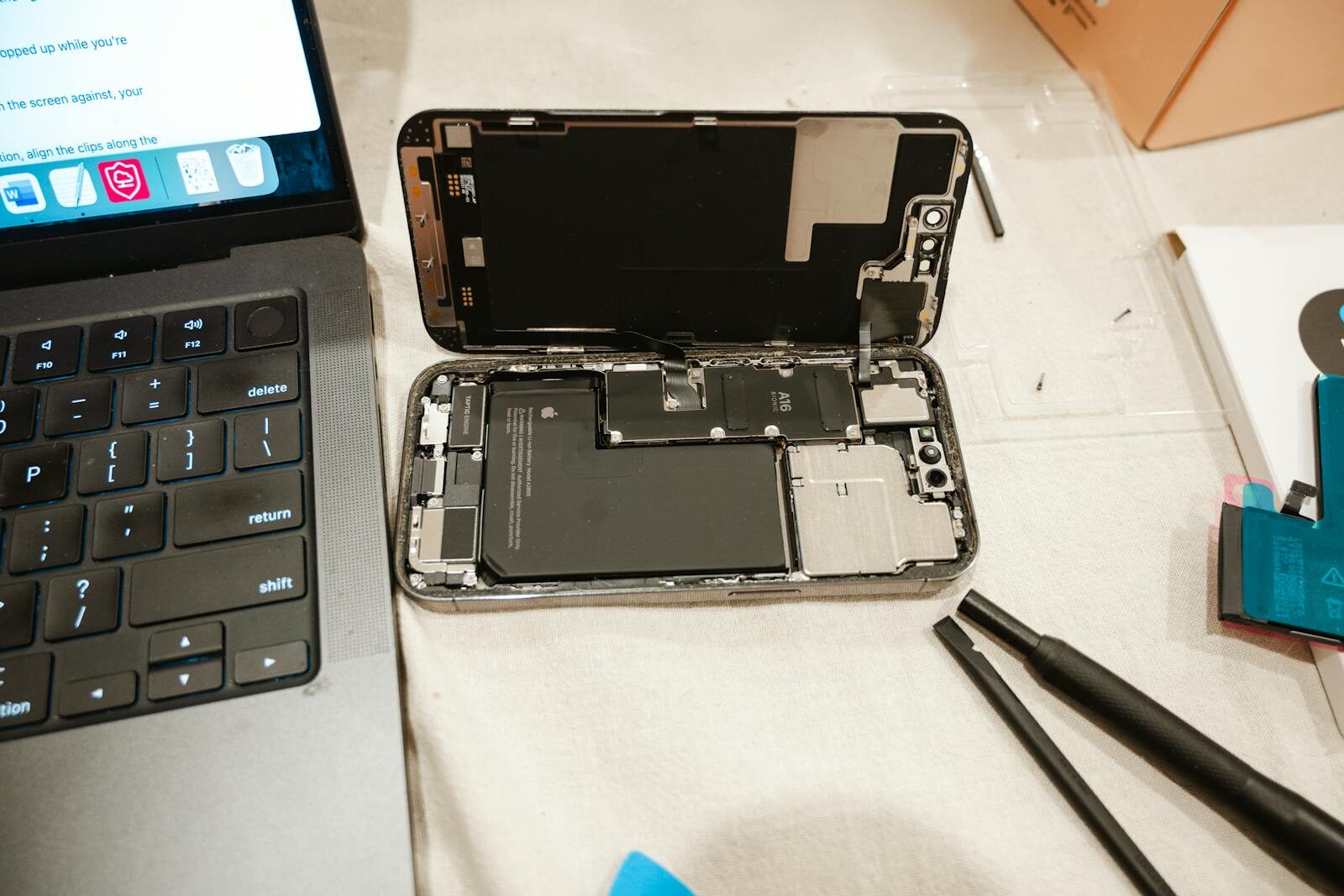
Replacing your Apple device battery can significantly enhance performance and extend the device’s lifespan. Understanding when and how to replace the battery, combined with appropriate care, ensures you get the most out of your Apple products.
Replacing the battery in your Apple device can breathe new life into your iPhone, iPad, or MacBook. Whether it’s an aging battery or a sudden performance drop, knowing how and when to tackle this task is essential for maintaining optimal device functionality. This guide will walk you through the process, from recognizing the signs of a failing battery to executing a replacement and ensuring your new battery lasts as long as possible. By understanding these steps, you can enhance your device’s longevity and performance.
Understanding When to Replace Your Apple Battery
Recognizing the signs that indicate it’s time to replace your Apple battery is crucial. Over time, batteries naturally degrade, leading to shorter usage times and unexpected shutdowns. If your iPhone, for example, frequently loses charge quickly or requires constant recharging, it might be time to explore battery replacement options. Similarly, if your MacBook shows a “Service Battery” warning, it’s likely that the battery health has significantly diminished. These are critical indicators that you should not ignore.
Beyond obvious issues like swelling or overheating, performance metrics can also signal the need for a new battery. Apple’s devices come with built-in diagnostic tools that can help you assess battery health. For iPhones, navigate to Settings > Battery > Battery Health to see the maximum capacity and performance capability. If the maximum capacity falls below 80%, it’s a strong sign that replacing the battery could improve performance. For MacBooks, using System Information can provide insights into cycle counts and battery condition, aiding in your decision-making process.
Finally, considering the age of your device is also important. Batteries typically have a lifespan of 300-500 full charge cycles for iPhones and about 1,000 cycles for MacBooks. If your device is several years old and you notice performance dips, evaluating the battery’s condition should be a priority. By understanding these factors, you can make informed decisions about when to replace your battery and maintain optimal device performance.

Tools and Materials Needed for Battery Replacement
Before starting the battery replacement process, ensure you have the necessary tools and materials. The specific items required can vary depending on the device, but commonly needed tools include a pentalobe screwdriver, a Phillips #00 screwdriver, and plastic opening tools. Additionally, a spudger and tweezers can be helpful to safely manipulate small components and connectors during the replacement process. These tools are often included in battery replacement kits available online or at electronics stores.
For the battery itself, purchasing a high-quality replacement is essential for ensuring long-term reliability and performance. Opt for batteries from reputable suppliers or directly from Apple if possible, as they are more likely to meet the device’s specifications and safety standards. Avoid low-cost alternatives that might not offer the same quality or could potentially harm your device.
In addition to these tools, having a clean, organized workspace is crucial for a successful replacement. This will reduce the risk of losing small components or accidentally damaging your device. A small magnetic mat can keep screws and parts organized, while ensuring that your workspace is static-free can prevent potential damage to electronic components. Preparing your tools and workspace in advance will set the stage for a smooth and efficient battery replacement process.
Step-by-Step Guide to Replacing Your Battery
Replacing your Apple device battery requires careful attention to detail. Start by powering off the device and disconnecting any external peripherals. For iPhones, begin by removing the screws near the lightning port using a pentalobe screwdriver. Use the plastic opening tools to gently lift the display from the body, being cautious of the delicate ribbon cables connecting the two. Carefully remove these cables to fully separate the screen from the device.
After opening your device, locate the battery, which is typically adhered with strips or adhesive. Use a spudger to peel back the adhesive strips and gently lift the battery out of the compartment. Be cautious to avoid puncturing or bending the battery, as this could cause damage or pose safety risks. Once removed, place the new battery in the same position, reattaching any connectors and ensuring it is securely seated.
Reassemble your device by reversing the disassembly process, taking care to properly reconnect all cables and components. Power on your device and check the battery settings to ensure installation was successful. For MacBooks, the steps are similar but may involve removing additional screws and components, depending on the model. Following these steps carefully will help ensure a successful battery replacement and restore your device’s performance.
Tips for Extending Your New Battery’s Lifespan
Once your new battery is installed, taking steps to extend its lifespan is important. Start by calibrating your battery: fully charge it to 100% and then let it drain completely before recharging. This process helps reset the battery’s sensors, ensuring more accurate readings of battery life and capacity. Regularly performing this calibration can optimize your battery’s performance over time.
Another key practice is avoiding extreme temperatures, which can degrade battery health. Keep your device between 32°F and 95°F (0°C and 35°C) whenever possible. If your device gets hot during use, consider removing bulky cases or reducing processor-intensive tasks to prevent overheating. Additionally, avoid leaving your device in hot environments, such as a car on a sunny day, to protect the battery from damage.
Finally, managing your charging habits can significantly influence battery longevity. Avoid frequent full discharges; instead, maintain a charge between 20% and 80% for optimal health. Using Apple’s optimized battery charging settings can further assist by reducing the time your device spends at 100% charge. By implementing these practices, you can ensure that your new battery maintains peak performance for as long as possible.
Understanding how to replace and care for your Apple device battery is an invaluable skill that can enhance your device’s performance and lifespan. By recognizing the right time for replacement, using the proper tools, and following detailed procedures, you can undertake this task with confidence. Additionally, applying effective maintenance strategies will help you enjoy the full benefits of your new battery investment. For more details on device maintenance and optimization, explore our other articles on Apple device performance and battery care tips at Apple Gazette.
