

Your friend’s birthday is tomorrow, and your iPhone holds years of photos but no obvious story. Sending everything creates a slideshow that feels more like an archive than a greeting. A more useful approach is to choose one shared memory, build a short sequence around it, and finish with a message the recipient will recognize as yours.
The harder problem appears when friends live apart: you have separate portraits, not a recording together. A conventional edit can place those photos side by side, but it cannot supply a new shared performance. For an optional comic interlude, Rap Duo AI can turn two portraits into a generated rap performance. Keep that element brief and clearly fictional; The birthday message should still work without it.
Choose One Memory and a Viewing Format
Write a single sentence describing what the video celebrates before opening an editor. “Happy birthday to the friend who always packs snacks for our hikes” gives you a direction. “A tribute to everything we have ever done” does not help you select material. Use the sentence to decide which photos belong, what a caption should say, and which jokes would need too much explanation.
Next, decide where the greeting will be watched. A phone message and a television screening need different framing. For a phone greeting, favor images whose main subject remains readable on a small screen. For a party screen, preview the edit horizontally before committing to portraits. Test the project format with two sample images first, especially if you intend to combine vertical clips with landscape photos.
Sketch three beats: a recognizable opening, the shared memory, and a direct birthday wish. Aim for roughly thirty to forty seconds rather than filling an arbitrary template. Give each photo enough time to understand it, then remove anything that repeats the previous image. A shorter greeting with a specific memory is preferable to a longer sequence of unrelated pictures.
Prepare Photos That Survive the Edit
Gather six to eight possible images in a dedicated album, then narrow them down. Include a recent portrait, two or three photos that establish the memory, and a closing image with room for text. Avoid choosing every photograph from the same occasion unless that occasion is the story. Check backgrounds for addresses, workplace details, or other information you would not want forwarded beyond the intended chat.
Select Recognizable Portraits
If you plan a generated scene, reserve one clear, front-facing photograph for each participant. Choose evenly lit faces without sunglasses, heavy filters, or objects covering the mouth. The generator’s published guidance recommends these conditions; separate photos are sufficient. Do not assume a tiny face cropped from a distant group shot will remain recognizable after animation. Replace an unsuitable source image rather than trying to hide its limitations with effects.
Separate Permission from the Surprise
Ask before uploading someone else’s face to an online service, even if the finished greeting is meant to be a surprise. Explain that the image will be used to generate a fictional performance, not simply placed in a slideshow. The service requires permission for depicted people and guardian consent for minors. Its privacy policy also says uploaded photos reach third-party rendering providers and remain stored until deletion is requested.
Build the Greeting Before Adding Effects
Start with the ordinary photo sequence so the birthday message has a complete structure. In an iMovie Movie project, use Add Media to choose photos or video from your library. Place the opening portrait first, the memory images next, and the closing greeting last. Apple’s instructions also let you trim a video before adding it by adjusting its yellow handles. Use that control to remove dead time before a wave or spoken wish.
Add text only where the picture cannot carry the meaning alone. Tap a clip, choose the Titles button, select a style, and edit the sample wording. “The hike where you brought three lunches” explains a photograph more effectively than “Amazing memories.” Keep captions short enough to read during playback. Preview the entire sequence rather than judging text while paused; a readable still can become a hurried caption in motion.
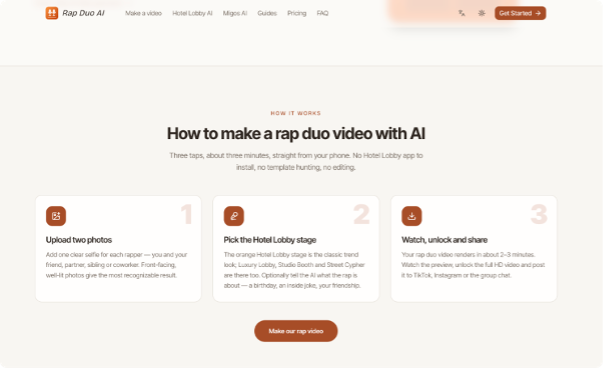
For friends who cannot film together, use the AI Rap Video Generator with two permitted portraits, a stage choice, and a short birthday topic. It generates the lyrics, vocals, beat, and performance video. Download the result, check both faces and the spoken details, and replace an unclear photo or simplify the topic before retrying. Review the displayed credit cost first; the birthday workflow has no free preview.
Treat that output as source footage, not as the editing project itself. Insert it only if it supports the memory already established. For the hiking example, a brief snack-themed performance could follow the trail photographs. If the joke requires a long explanation, leave it out. Keep a sincere closing wish after the comic section so the recipient receives an actual greeting, not just a demonstration of an effect.
Check the Export, Not Just the Timeline
Listen through headphones once, then play the saved video through the phone speaker. Check whether speech remains understandable and whether sound jumps abruptly between sections. If a recorded clip contains distracting background audio, iMovie lets you select that clip and reduce its volume; This is an editing step, separate from generating a performance. Do not mute a meaningful spoken birthday wish merely to make every segment sound identical.
Watch again without sound. Can someone identify the recipient, understand the memory, and read the final wish? Pause on generated frames to check altered faces, distracting hands, and unexpected details. Remove a clip if its visual errors overwhelm the joke. Send a test copy to yourself through your messaging channel and view that received version. Label generated footage as AI-created so it is not mistaken for an actual recording.
Keep the Person More Memorable Than the Effect
A birthday video works when its choices point back to one person: the photograph they remember, the joke they enjoy, and the words you would say directly. Select those elements first, assemble a complete greeting, and add a generated scene only when it contributes something specific. Judge the finished piece by recognition, readability, and comfort with sharing, rather than the number of effects included.
If you are uncertain about permission or the recipient’s reaction, use ordinary photos and your own recorded wish instead. The most reusable principle is restraint: keep the memory, remove the repetition, and let the greeting end before it becomes a showcase for the software.
