
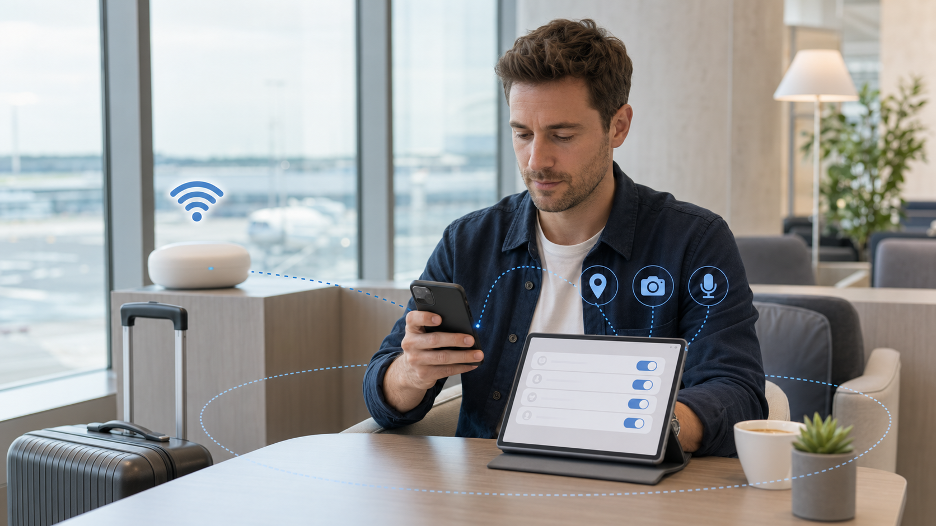
Many people choose iPhones and iPads because they trust Apple’s approach to privacy, security, and device control. iOS and iPadOS include helpful settings for app permissions, account access, passwords, location sharing, and browser activity.
Still, privacy on an Apple device is not only about built-in settings. It also depends on everyday choices: which Wi-Fi network you join, which apps you install, which permissions you allow, and how carefully you manage accounts while traveling, studying, or working away from home.
An iPhone or iPad can be well protected and still connect to a network you do not control. That happens often in airports, hotels, cafés, campuses, libraries, coworking spaces, and events. A few simple habits can help Apple users browse more safely without making privacy feel complicated.
Check the Wi-Fi Before You Connect
Public Wi-Fi is useful, but it is worth checking before you join. In a hotel, café, airport, school, or public space, you may see several network names that look similar. Some may be official. Others may be confusing or unsafe.
If you are unsure, ask a staff member for the correct network name. This small step can help you avoid joining a random open network by mistake.
Apple devices can also remember networks you have used before. That is helpful at home or work, but less ideal with public networks. If your iPhone or iPad keeps reconnecting to a network you no longer use or trust, go into Wi-Fi settings and forget that network.
For sensitive tasks, cellular data may sometimes be safer than public Wi-Fi. Checking a map or reading reviews is one thing. Logging into banking, payment apps, work dashboards, or important email accounts needs more caution.
Review App Permissions Before They Become Routine
Apple gives users strong permission controls, but those controls only help if people review them. Many apps ask for access to location, camera, microphone, photos, Bluetooth, contacts, or tracking permissions. Some requests make sense. Others may not be needed for the way you use the app.
Location access is especially important. Some apps only need your location while you are using them. Others may ask for “Always” access, even when they do not need it. If an app does not need constant location access, change the setting.
Photos are another area to check. Some apps may only need access to selected photos, not your full library. iPhone and iPad users can often limit photo access instead of giving an app permission to see everything.
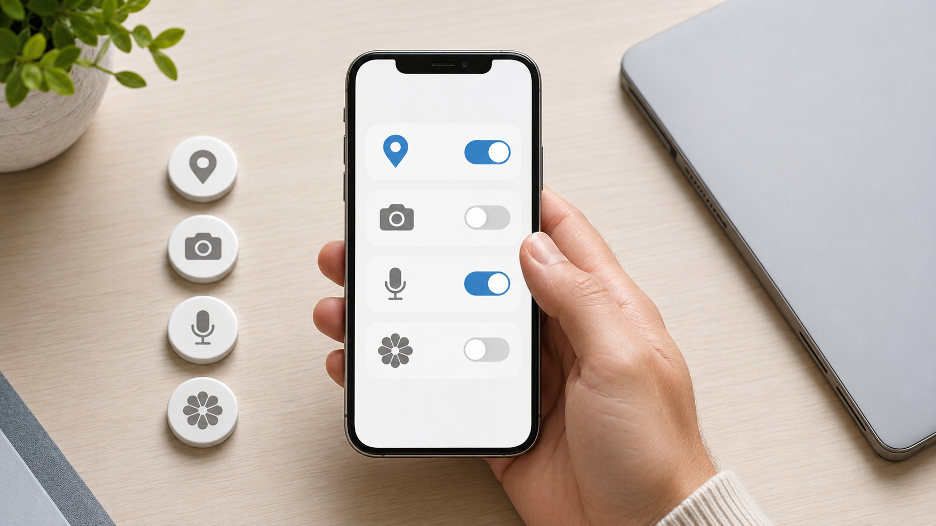
Before traveling or starting a busy work period, take a few minutes to review app permissions. Remove apps you no longer use. Limit permissions that feel too broad. Privacy is easier to manage when old apps are not quietly holding access they no longer need.
Test Privacy Tools Before Travel or Remote Work
If you plan to rely on privacy tools while traveling, studying, or working from public Wi-Fi, test them before you need them. It is much easier to check settings at home than to fix a connection problem in an airport, hotel lobby, campus library, or café.
A VPN can add a privacy layer on networks you do not control by creating an encrypted connection between your device and a VPN server. This can be useful when browsing, checking email, or accessing everyday accounts on shared Wi-Fi.
Before relying on a VPN while traveling, studying, or working from public Wi-Fi, iPhone and iPad users may want to use a VPN free trial to check setup, speed, app behavior, and whether their normal websites and apps still work smoothly. Testing early is easier than troubleshooting a connection problem at an airport, hotel, or campus library.
When testing, check the basics. Does the app connect easily? Do your regular websites still load? Does email work normally? Are video calls stable enough? Does the VPN affect battery life in a noticeable way? These practical details matter more than marketing claims.
A VPN should not be treated as a complete privacy solution. It does not replace strong passwords, two-factor authentication, app permission reviews, or careful browsing. It is one extra layer for certain situations, especially when the network is not yours.
Use Stronger Account Habits on Mobile
Many people manage their most important accounts from an iPhone or iPad. Email, Apple ID, banking, cloud storage, messaging, work apps, school portals, and travel accounts may all live on the same device.
Start with the Apple ID. It connects to iCloud, device backups, App Store purchases, Find My, photos, messages, and more. A weak Apple ID password can create problems across the whole Apple ecosystem. Use a strong password and turn on two-factor authentication.
Email also deserves extra care. If someone gets into your main email account, they may be able to reset passwords for other services. Protect email with a strong password and two-factor authentication whenever possible.
Apple Passwords and iCloud Keychain can help users create and store stronger passwords instead of reusing the same one everywhere. Reusing passwords is risky because one exposed account can lead to other accounts being attacked.
Face ID and Touch ID make secure access easier, but they do not replace good account habits. They protect the device experience, while strong passwords and two-factor authentication protect the accounts behind the apps.
Safari, Chrome, and Browser Privacy on Apple Devices
Safari is the default browser for many Apple users, and it includes useful privacy features. Still, many iPhone and iPad users also rely on Chrome for work, school, shopping, research, Google Workspace, or cross-device syncing.
Browser privacy matters because so much daily activity happens on the web. Saved passwords, cookies, autofill, browser history, login sessions, and extensions can all affect privacy and account safety.
Apple users who rely on Chrome for work accounts, research, shopping, or travel planning may also consider a VPN Chrome extension for browser-focused privacy, especially when most of their activity happens inside the browser. A full VPN app may be better for device-wide use, but browser-focused tools can still be useful for daily web activity.
It also helps to keep browser activity organized. You might use Chrome for work and Safari for personal browsing, or separate profiles for school and personal accounts. This can help prevent account mix-ups, especially for students, freelancers, remote workers, and anyone who manages several accounts from one device.
Be careful with extensions and saved login sessions. Only use browser tools you trust. Log out of important accounts when using shared or borrowed devices. If a browser feels cluttered with old settings, saved accounts, or tools you no longer use, clean it up.
Keep Travel and Work Accounts Separate When Possible
It is easy for one device to become the place where everything happens. Personal messages, school portals, client dashboards, travel bookings, online shopping, work email, and banking may all sit on the same iPhone or iPad.
That is normal, but it can become messy. Mixing too many accounts can lead to mistakes, such as sending a file from the wrong account, saving a password in the wrong place, or staying logged into a service longer than intended.
When possible, separate personal, school, and work activity. You can use different browser profiles, different email accounts, separate folders, or dedicated apps for certain tasks. The setup does not need to be perfect. Even a little organization can reduce confusion.
Travel accounts also deserve attention. Airlines, hotels, ride apps, maps, and booking platforms often store personal details and payment information. Before a trip, check that these accounts have strong passwords and current recovery information.
If you borrow someone else’s device or use a shared tablet, avoid logging into sensitive accounts unless necessary. If you do log in, log out completely and avoid saving passwords.
Update iOS, iPadOS, and Important Apps
Updates are easy to delay, but they matter. Apple releases updates that can fix bugs, improve stability, and address security issues. App developers do the same.
Before travel, school terms, conferences, or busy work periods, update your iPhone, iPad, browser, email app, cloud storage apps, banking apps, travel apps, and work tools. This helps reduce avoidable problems when you are away from your normal setup.
It is also a good time to remove apps you no longer use. Old apps may still have permissions, send notifications, or store data. Deleting unused apps keeps the device cleaner and easier to manage.
Restarting the device after updates can also help. It gives the system a fresh start and may prevent small issues from appearing when you need the device most.
A Simple iPhone and iPad Privacy Checklist
Privacy does not need to become a full-time project. Most Apple users can improve daily safety by building a simple checklist.
Before connecting to public Wi-Fi, confirm the network name. Forget old public networks you no longer trust. Use cellular data for sensitive tasks when public Wi-Fi feels suspicious.
Review app permissions from time to time. Limit location access when possible. Remove apps that no longer serve a purpose. Keep iOS, iPadOS, browsers, and important apps updated.
Protect your Apple ID, email, banking, cloud storage, work, and school accounts with strong passwords and two-factor authentication. Use Apple Passwords or another trusted password manager instead of reusing passwords.
Be careful with browser sessions, saved passwords, autofill, and extensions. Keep work, school, and personal browsing more organized when possible.
If you plan to use a VPN or browser privacy tool, test it before you depend on it. Make sure your normal apps and websites still work, and understand when the tool helps and when it does not.
Privacy Works Best as a Daily Habit
iPhone and iPad users do not need to become security experts to protect their privacy better. Small habits make a real difference: check networks before joining, review app permissions, protect important accounts, keep devices updated, and test privacy tools before travel or remote work.
Apple gives users many helpful privacy controls, but those controls work best when people use them actively. A device can be secure, but careless network choices, weak passwords, old apps, and messy browser habits can still create problems.
The best approach is practical. Keep your device updated, limit what apps can access, be careful on public Wi-Fi, and protect the accounts that matter most. With a few steady habits, iPhone and iPad users can browse, travel, study, and work with more confidence.
