
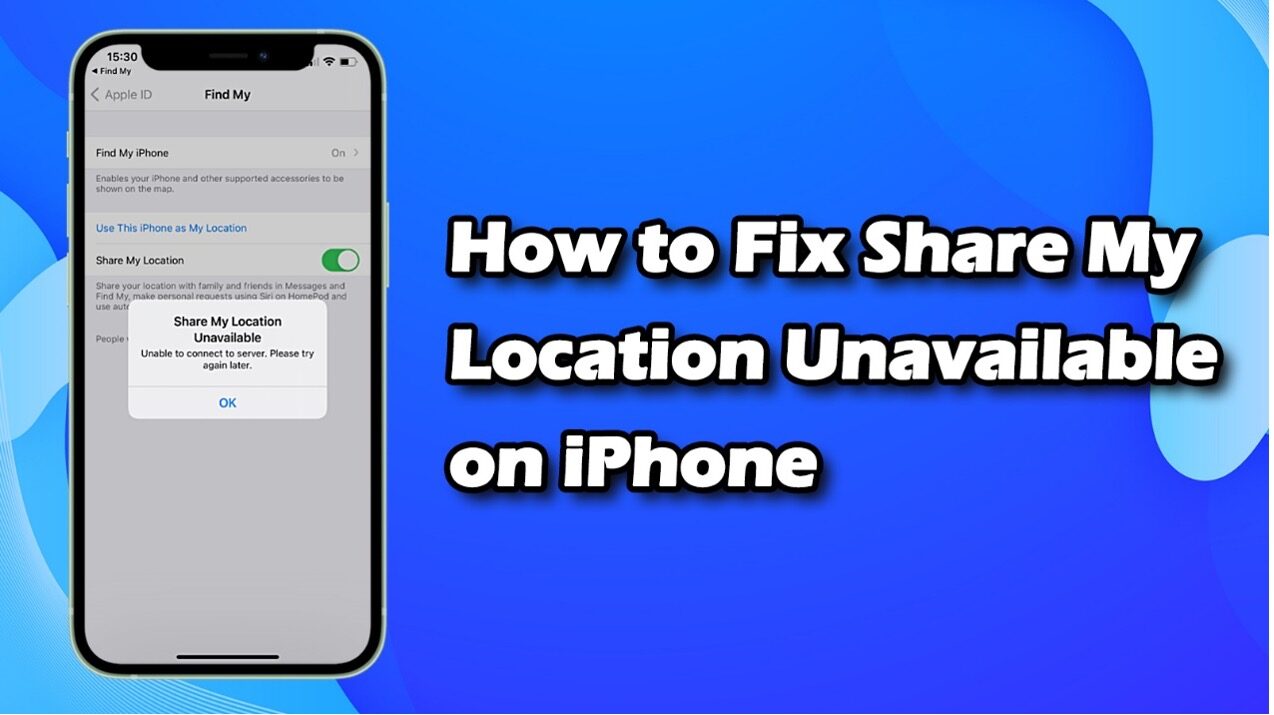
Are you seeing the frustrating “Share My Location Unavailable” message on your iPhone when trying to let friends or family know where you are? The iPhone share location unavailable issue can pop up for various reasons, ranging from simple settings mishaps to more complex system glitches. If you’re searching for reliable solutions on how to fix share location unavailable on iPhone, you’re in the right place.
In this article, we’ll walk you through nine effective methods to resolve this problem. We’ll start with basic troubleshooting steps, and move on to advanced solutions like using the TunesKit iOS System Recovery tool for deeper system issues. Whether you’re experiencing this issue on Find My, Messages, or any other app, our guide covers everything you need to get your location sharing up and running again.
Why Does My iPhone Say Share Location Unavailable?
There are several reasons why is share location unavailable on iPhone. Some are simple setting misconfigurations, while others involve more serious system glitches. Here are the most common causes:
- Location Services is turned off
- “Share My Location” is disabled
- Weak or unstable network connection
- Apple ID or iCloud syncing issues
- Outdated or buggy iOS version
- Screen Time restrictions blocking access
- Incorrect app permissions
- Temporary system glitches
- Corrupted iOS system files that affect Location Services
Any of these can trigger the iPhone share location unavailable, so the solutions below target them one by one.
How to Fix Share Location Unavailable on iPhone
Method 1: Enable Location Services and Permissions
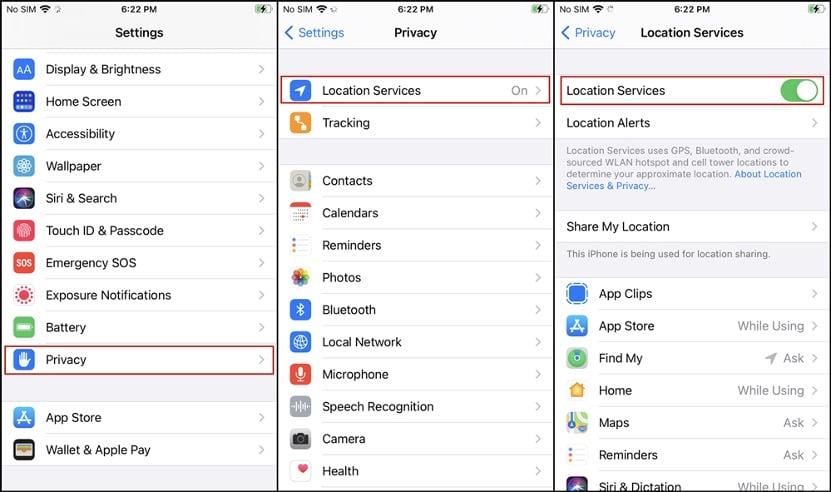
Location Services is essential for GPS, Find My, and real-time location sharing. If it’s turned off, your iPhone won’t be able to send your location.
How to enable it:
Open Settings > Tap Privacy & Security > Choose Location Services > Toggle it ON
If it’s already enabled, try switching it OFF for 5 seconds and then turn it back ON. This refreshes the GPS permission system.
If you’re using a specific app to share your location like Find My and Messages, you can scroll down to make sure they are set to While Using the App or Always. And you can also turn the Precise Location toggle button on to improve positional accuracy.
Method 2: Turn On “Share My Location”
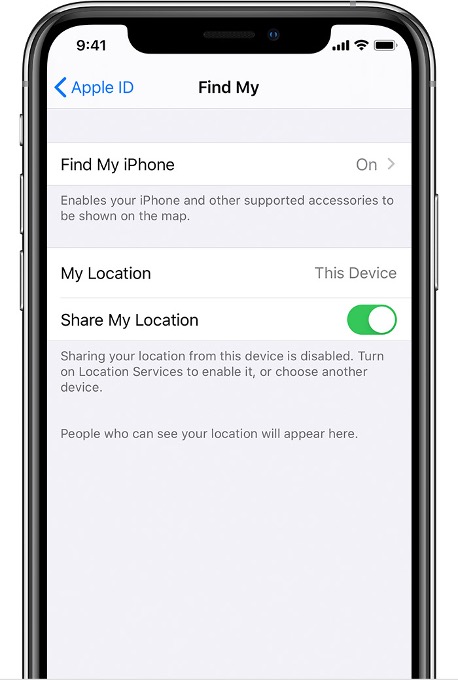
Even if Location Services is enabled, the Share My Location toggle must also be on under your Apple ID settings. If this option is disabled, your iPhone cannot send your live position to others.
Steps:
Go to Settings > Tap your Apple ID (your name at the top) > Select Find My > Turn on Share My Location
This enables your iPhone to broadcast your location through Find My, Messages, Family Sharing, and other Apple services.
Method 3: Restart Your iPhone
A simple restart can fix temporary system conflicts that cause iPhone Share Location Unavailable. This works especially well after changing settings.
Steps:
For Face ID models:
Press and hold the Side button and Volume Up button, then slide to power off.
For Touch ID models:
Hold the Power button, then slide to power off.
Wait 15 seconds before turning it back on. A reboot clears caches and resets system modules responsible for GPS and iCloud syncing.
Method 4: Check Your Network Connection
Location sharing requires a stable internet connection. Weak Wi-Fi, limited data, or VPN interference may cause the feature to fail.
Try these:
- Toggle Airplane mode ON ? OFF
- Switch between Wi-Fi and mobile data
- Forget your Wi-Fi network and reconnect
- Disable any VPN, because some VPNs block location services
- Restart your router if Wi-Fi is unstable
Once you restore a stronger connection, check again if your location can be shared.
Method 5: Sign Out and Sign Back In to Apple ID
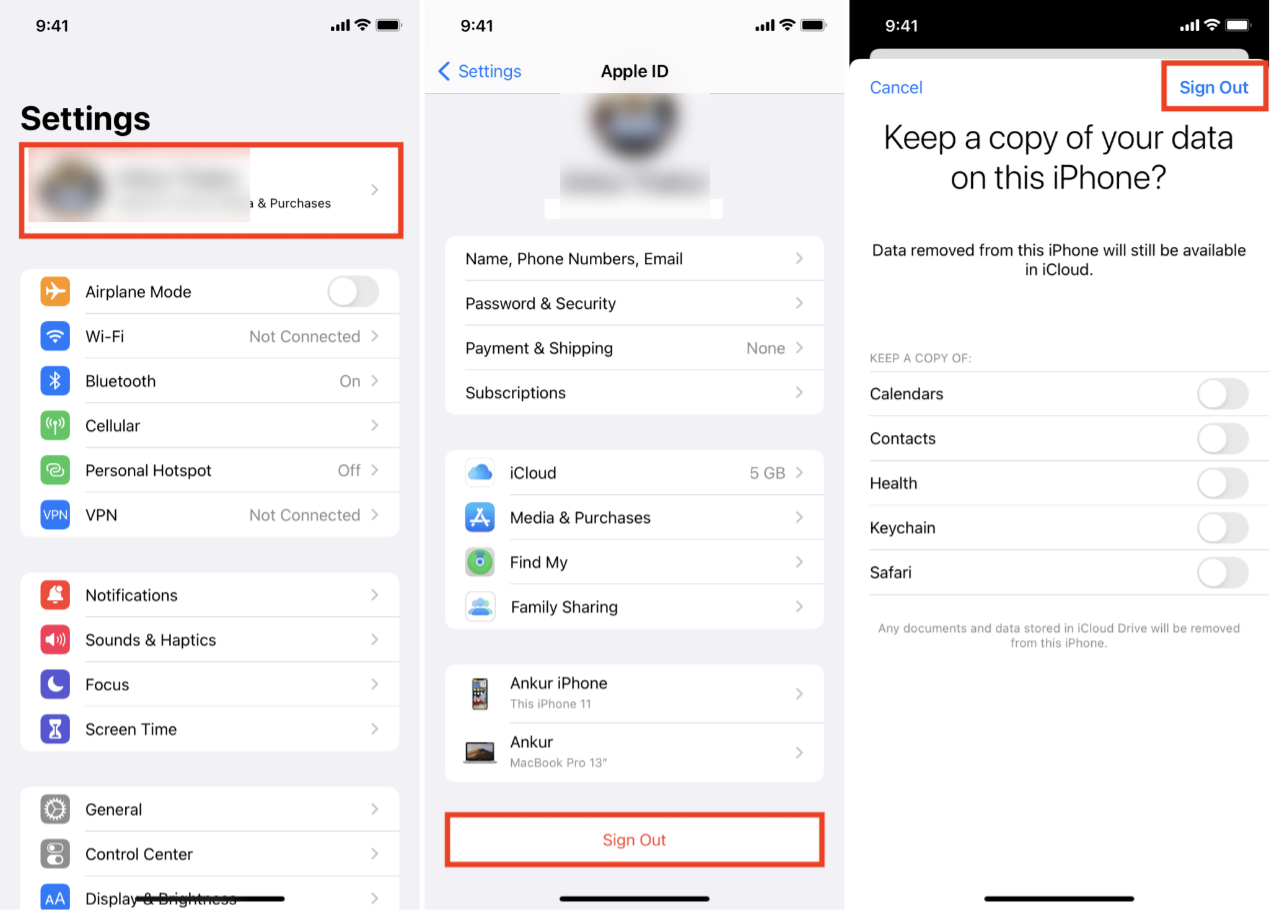
Apple ID syncing issues can break Find My functions and cause your iPhone to show Share Location Unavailable. Logging out and in forces a refresh of all iCloud-related services.
Steps:
Go to Settings > Tap your Apple ID > Scroll down and tap Sign Out > Enter your password and restart your iPhone > Sign back into your Apple ID
Make sure you are using your primary iCloud account. After signing in again, open Find My and check if the feature is working normally.
Method 6: Update to the Latest iOS Version
If you are running an outdated version of iOS, there may be bugs affecting Find My and Location Services. Apple often releases patches to fix these issues.
To update your iPhone:
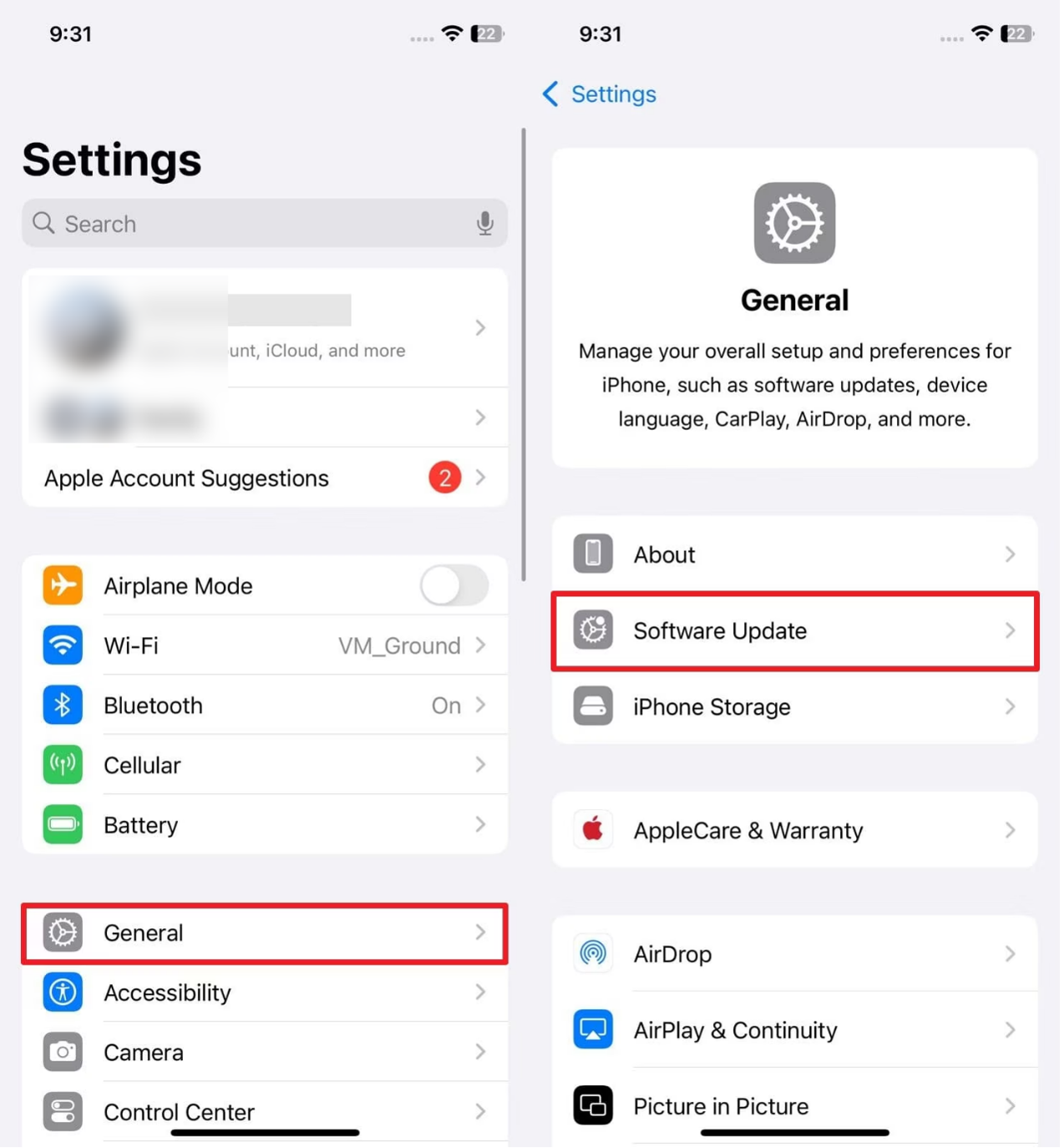
Go to Settings > Tap General > Select Software Update > Download and install the latest version
Your device may restart several times during the update. After updating, try sharing your location again.
Method 7: Reset Location & Privacy Settings
If certain apps were denied permission accidentally, or system rules became corrupted, this reset can restore all location-related permissions.
Steps:
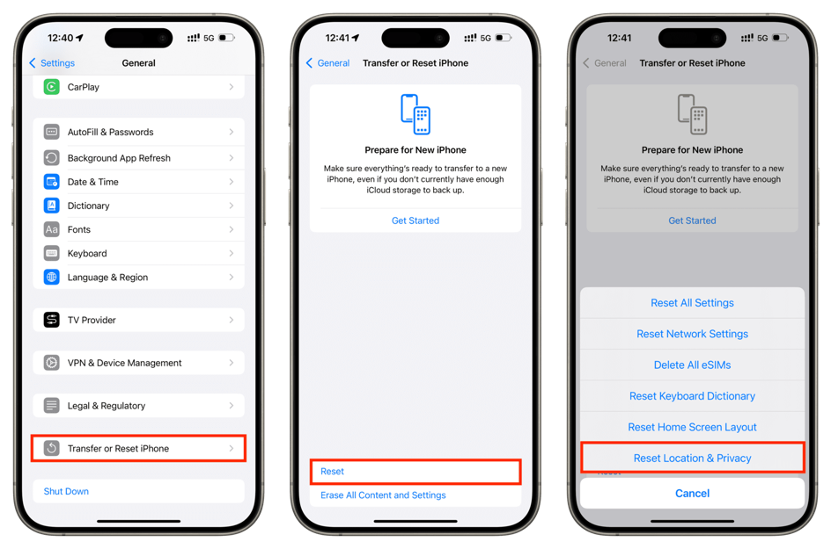
Go to Settings > Tap General > Select Transfer or Reset iPhone > Tap Reset > Choose Reset Location & Privacy
Your iPhone will reset all location permission prompts. Open Find My afterward and allow location access when prompted.
Method 8: Check Screen Time Restrictions
Screen Time or Content Restrictions can disable location services without you noticing. If these settings block GPS or account changes, your iPhone may display “Share Location Unavailable.”
How to check:
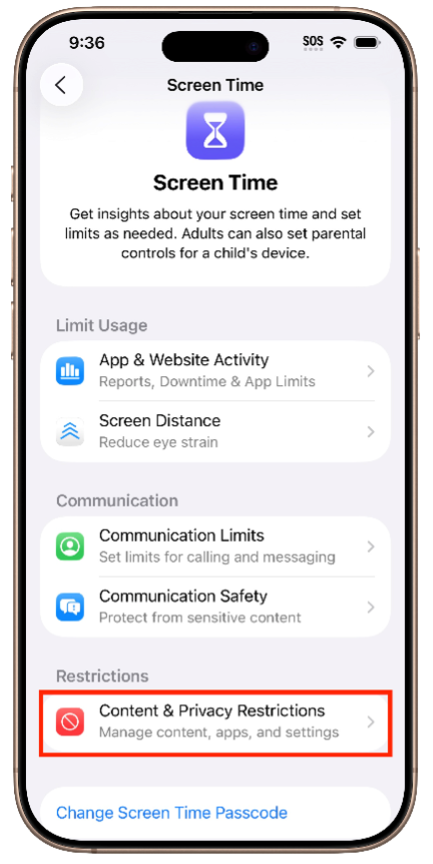
Open Settings > Tap Screen Time > Go to Content & Privacy Restrictions > Make sure the following are allowed:
Location Services ? Allowed
Share My Location ? Allowed
Account Changes ? Allowed
If any of these are restricted, location sharing will not work properly.
Method 9: Using TunesKit iOS System Recovery
When all settings and network fixes fail, your iPhone may have a deeper system-level problem, such as corrupted system files or broken iOS services. In such cases, a professional repair tool like TunesKit iOS System Recovery can restore your system without data loss.
What Is TunesKit iOS System Recovery?
TunesKit iOS System Recovery is a desktop utility designed to fix various iOS issues without data loss. It helps users repair problems like iPhone stuck on Apple logo, boot loop, or won’t turn on in just a few clicks. It saves time and money by avoiding costly repairs or factory resets, making iOS troubleshooting simple and efficient.
Key features:
- Repairs a wide range of iOS system problems at home without data loss.
- Simple, step-by-step interface suitable for non-technical users.
- Compatible with most modern iPhone models and the latest iOS versions.
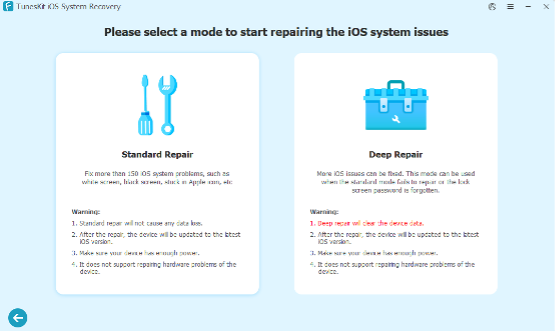
- Provide two recovery modes, Standard Repair (no data loss) and Deep Repair (erase data) for a comprehensive fix.
- Quickly enter or exit recovery mode with a single click for free.
- Support downgrade and upgrade iOS version, easily revert to previous versions.
How to Fix Share Location Unavailable on iPhone with TunesKit
Step 1: Download and install TunesKit iOS System Recovery on your Mac or Windows PC. Make sure your internet connection is stable. Open TunesKit and connect your iPhone via USB.
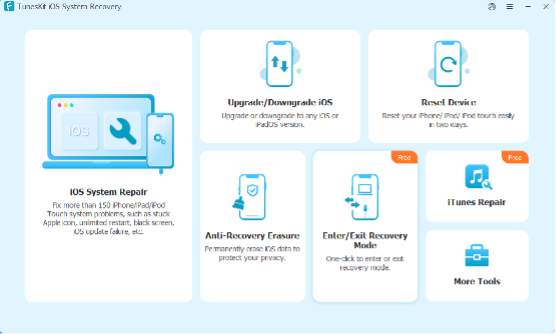
Step 2: Click iOS System Repair. Select Standard Repair to preserve data.
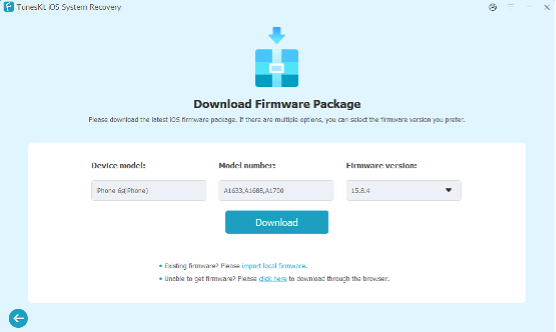
Step 3: Verify your device info and click Download to download the firmware package.
Step 4: Click Start Standard Repair and wait a few minutes. TunesKit will restore your iOS system.
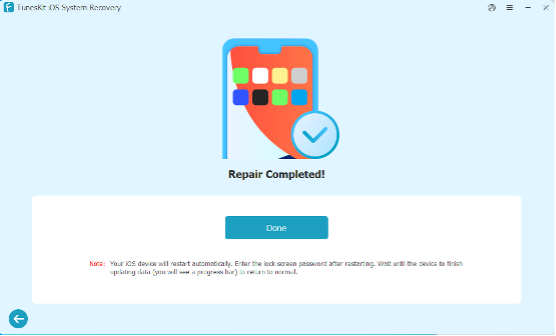
Your iPhone will reboot with a fresh, stable system, and location sharing should work normally again.
Conclusion
Dealing with the iPhone share location unavailable error can be inconvenient, especially when you need to keep friends and family updated on your whereabouts. Fortunately, as we have outlined in this guide, there are several practical solutions you can try. From verifying your location services settings and ensuring your Apple ID is properly configured, to checking for software updates and taking advantage of advanced tools like TunesKit iOS System Recovery, you have a full toolkit at your disposal. Remember, most issues can be resolved with just a few simple steps, but in more stubborn cases, a professional recovery tool might be the best route. Share your location with confidence and stay connected with those who matter most!
