
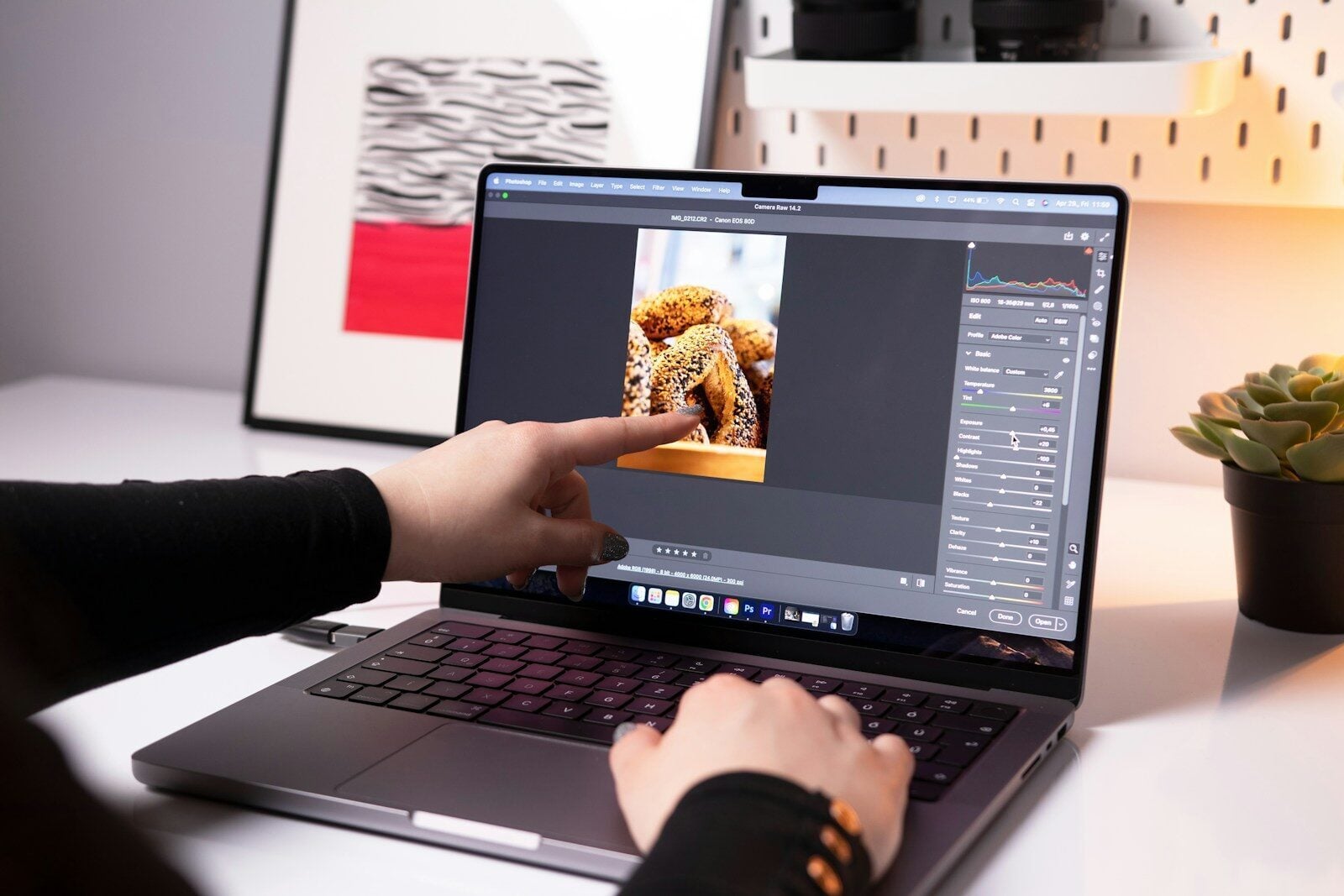
An otherwise useful photo can need one awkward change: a distracting object on the table, the wrong color of a cushion, or a background that competes with the subject. Seedream 5.5 is worth understanding through that editing problem. The question is how to request the change while keeping the photograph you already liked.
On a Mac or iPhone, start with an exported copy of the image and a browser-based service that offers the model. This workflow does not depend on a Photos extension, an Apple Intelligence feature, or an assumed native integration.
What Seedream 5.5 changes about photo editing
ByteDance’s Seedream 5.5 release article emphasizes preservation of untouched regions during successive edits. It also introduces native RGBA assets with full and partial transparency, alongside improvements to realism and text rendering.
The company’s demonstration uses 100 successive edits to one image. That does not promise preservation through every edit you make. Compare your outputs with the original.
For ordinary photo editing, this suggests a useful approach: describe a limited change and inspect the surrounding area. A complete restyling request has a different goal. Asking for a new photographic style while insisting that all lighting and texture stay identical gives the model conflicting instructions.
Export a copy you can always return to
Keep the original photograph in your library and export a separate working file. Before uploading it, open that file and confirm its orientation, crop, and visible detail. A screenshot of an image preview may discard information you wanted to preserve.
Use a filename that identifies the source, such as “reading-chair-original.” Put downloaded edits beside it with version numbers. On an iPhone, saving into a named folder in Files can make the original and edited copies easier to distinguish when the upload picker opens again.
Upload the highest-quality copy in a format the service accepts.
reAPI provides a Seedream 5.5 model page with generation controls and API documentation. Select the exact model and an image-editing input before uploading. A text-only request will not automatically know which photograph you meant.
Write the change and the preservation instructions separately
Suppose your photo shows a reading chair beside a window, with a bright orange cushion that clashes with the room. You want a muted blue cushion, not a redesigned chair or a different apartment.
An example editing brief is:
Change only the orange cushion on the reading chair to muted slate blue. Keep its fabric texture, seams, folds, and position. Preserve the chair, window, floor, framing, and existing daylight. Do not add objects or change the room’s color palette.
After generation, inspect the cushion boundary, the chair arm behind it, and the shadow where the fabric meets the seat. Those details reveal whether the edit has spread beyond its intended area.
If the new color is wrong, ask for a more precise color adjustment. If the chair changed, reconsider the base image and preservation brief before adding another instruction. Combining both repairs with a new background request makes it harder to identify what caused the problem.
Use checkpoints instead of one long editing chain
Save an approved version as soon as it meets the brief. That file becomes a deliberate checkpoint. You can return to it when a later edit changes something unexpectedly.
For the reading-chair example, the sequence might be a cushion recolor, removal of a loose charging cable, and a separate crop for a listing. Inspect each stage before continuing. If the cable removal damages the chair leg, discard that branch and return to the approved recolor.
Compare at two scales. The full image reveals whether the composition still works; a closer view helps you catch altered fabric, doubled edges, or strange contact shadows. Do not judge exclusively at an extreme zoom that exceeds the intended use, but do check any detail that matters to the photograph’s purpose.
For a product photo, check its shape, labels, and visible condition. The edit must still represent the object accurately.
Handle transparency as an export requirement
Seedream 5.5’s native transparency capability can be useful when you need a standalone asset. The service must expose a suitable workflow and return a format that preserves the alpha channel.
Check the downloaded result against both a light and a dark background. Examine hair, glass, soft shadows, and object edges. A checkerboard painted into the picture is different from actual transparent pixels.
When comparing providers, confirm the exact model and export options. Multi-model services such as TokLab are another place to investigate available workflows, but a general image-generation category does not confirm Seedream 5.5 or its transparency controls. Verify those details before moving an established editing process.
Frequently asked questions
Does Seedream 5.5 run inside Apple Photos?
This guide uses an exported file and a browser-based service. It does not assume an Apple Photos extension or native integration. You can import an approved downloaded result into your library afterward.
Can I keep editing the same photograph?
That is a stated focus of the model. Save checkpoints and compare unchanged areas after each edit. The manufacturer’s multi-round demonstration should not replace inspection of your own output.
Should I edit on an iPhone or a Mac?
Use whichever supported browser interface suits the task. A phone is convenient for selecting a recent photo; a larger display can make detailed comparisons easier. Neither choice changes the hosted model into an on-device editor.
Finish with the smallest acceptable change
A good Seedream 5.5 photo edit should satisfy the original brief without creating another repair job. Keep the source, describe what must stay, and stop when the change is right. More iterations are useful only when there is something specific left to fix.
