
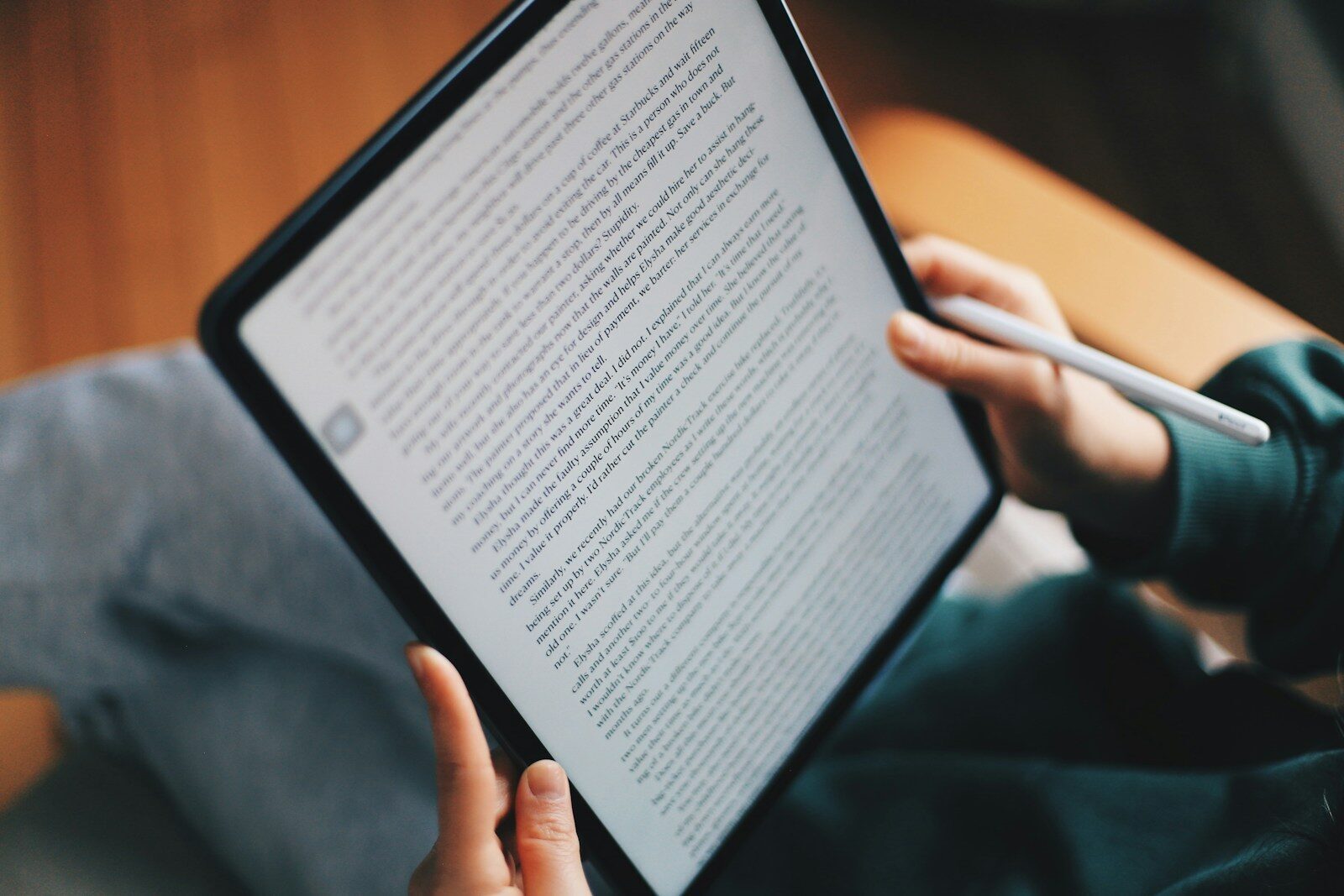
It is 11:15 PM on a Tuesday, and a university junior named Alex is sitting at a library desk with a 2,500-word term paper due at midnight. A few years ago, this scenario usually meant frantically re-reading printed pages with a yellow highlighter, skimming past typos because eyes were simply too tired to spot them. Today, the screen setup looks entirely different.
The Dual-Device Hardware Synergy
The days when an iPad was treated purely as a tablet for light reading and a Mac as a heavy-duty typing machine are largely over. Thanks to features like Sidecar, Universal Control, and Stage Manager, Apple’s ecosystem allows students to treat the two devices as a single, flexible workspace tailored specifically for editing.
During the drafting phase, a single screen is often enough. But proofreading requires perspective. It demands stepping back from the act of typing to view the essay as a critic rather than the author. Students leverage this dual-screen dynamic in several distinct ways:
- Reference Pinning with Sidecar: By extending the Mac display onto an iPad, students keep outline rubrics and source bibliographies visible on the tablet while making active edits on their Mac keyboard.
- Tactile Proofreading via Apple Pencil: Exporting a draft to PDF and opening it on an iPad in apps like Goodnotes or Notability allows students to cross out weak sentences, draw connection arrows, and scribble margin notes by hand—a tactile process that engages different cognitive pathways than typing.
- Seamless Clipboard Sharing: Universal Control lets a single mouse and keyboard slide effortlessly between Mac and iPad, making it seamless to copy pulled quotes directly from research apps into draft footnotes.
Hearing Is Believing: The Audio Proofreading Hack
One of the most effective self-editing tactics adopted by tech-savvy students relies on sight and sound working together. When you re-read your own writing silently, your brain automatically fills in missing words, corrects clunky punctuation, and skips over awkward sentence structures because it already knows what you intended to say.
By enabling macOS and iPadOS Spoken Content (found in Accessibility settings under Spoken Content), students listen to their essays read aloud by natural-sounding speech synthesizers. Hearing text voiced at normal speaking speed immediately exposes word repetitions, run-on sentences, and unnatural phrasing. Many students put on noise-canceling headphones, open their draft on an iPad, and listen to their Mac render the text, marking errors on the tablet screen the moment an awkward phrase hits their ears.
Safeguarding Originality and Academic Integrity
As digital tools become more embedded in academic research, the editing process has expanded beyond simple grammar and typos. Today, students must also monitor tone, citation accuracy, and stylistic authenticity. With digital research assistants, automatic paraphrasing tools, and browser extensions embedded directly into Safari and Chrome, it is easier than ever for external phrasing to accidentally seep into an authentic student draft.
Before hitting the final submit button on portals like Canvas or Blackboard, careful students conduct systematic self-audits. They verify that every quote has an accompanying citation, verify that paraphrased blocks sound genuinely like their own voice, and run structural checks. To ensure their paper doesn’t unintentionally reflect synthetic patterns or over-assisted phrasing introduced during background research, students often upload their working draft to an ai detector to inspect text structure independently. This extra verification step gives students peace of mind, confirming that their final submission remains true to their authentic academic voice.
Empirical Insight: How Students Allocate Self-Editing Time
Recent observational data tracking student study habits across undergraduate humanities and science programs highlights how Apple hardware usage shifts between the initial drafting phase and the final editorial scrub:
| Editing Task | Primary Hardware Used | Key Software / Technique | % Student Adoption |
|---|---|---|---|
| Spelling & Grammar Pass | MacBook / iMac | Pages / Grammarly Extension | 92% |
| Structural Markup | iPad + Apple Pencil | Goodnotes / PDF Expert | 68% |
| Audio Proofreading | Mac / iPad + Headphones | macOS Accessibility Speech | 74% |
| Citation & Originality Check | MacBook (Split Screen) | Zotero / Integrity Verification | 81% |
Case Study: A 4-Step Student Self-Editing Routine
To understand how these tools fit into a realistic workflow, consider a practical four-step editing sequence commonly used by high-performing students:
1. The Distance Phase
Drafting happens on the Mac. Once complete, the document is converted to PDF and sent via AirDrop to the iPad. Taking a step away from the keyboard prevents immediate, hasty edits.
2. The Pencil Scrub
On the iPad, the student reads the document using Apple Pencil to highlight thesis claims, mark weak topic sentences, and draw visual links between related paragraphs.
3. The Speech Pass
Back on the Mac, the student triggers Spoken Content to read the marked-up draft aloud, actively fixing clumsy phrasing and adjusting sentence rhythms in real-time.
4. The Final Verification
The student completes a split-screen audit, checking bibliography links, ensuring proper formatting, and verifying that original phrasing remains distinct and uncompromised.
Deep-Dive: Annotation and Active Cognitive Engagement
Educational researchers frequently point out that active editing requires a different state of mind than drafting. Writing is generative; editing is evaluative. The physical hardware used during each phase can subtly nudge the brain into the appropriate mindset.
When typing on a keyboard, it is tempting to make minor line edits—changing a word here, deleting a comma there—while ignoring major structural flaws like a weak argument or an unconvincing conclusion. The iPad with Apple Pencil breaks this habit. When holding a tablet like a physical sheet of paper, students tend to read more holistically.
Using handwriting apps, students write marginal prompts to themselves: “Does this point really back up my main thesis?” or “Add specific example here.” This tactile interaction restores the traditional benefits of pen-and-paper editing without wasting paper or losing digital searchability.
Optimizing Your Apple Setup for Academic Writing
Setting up an effective personal editorial studio on Apple hardware requires zero budget and only a few minutes of configuration. Here are practical settings and tools worth enabling immediately:
- Customize Speech Speed: Under Settings > Accessibility > Spoken Content on either device, adjust the speaking rate to roughly 1.1x speed. This keeps the playback fast enough to stay engaging while remaining slow enough to highlight syntax mistakes.
- Utilize Focus Modes: Create an “Editing Focus” on macOS and iPadOS that silence non-essential notifications (like messaging apps or social media) while allowing access to research portals and digital notebooks.
- Leverage Split View for Fact-Checking: Keep your main document on the left half of the Mac screen and your annotated source material on the right half. Cross-reference quotes and citations as you make final corrections.
- Keep Local Backups: Store active drafts in iCloud Drive so that line-edits made on the iPad instantly sync back to the master document on the Mac without manually managing multiple file versions.
Developing a Personal Quality Control Habit
Technology alone does not turn a rough draft into an exceptional paper, but thoughtful workflows help students take control of their own growth as writers. By combining the typing power and screen space of a Mac with the tactile annotation and portability of an iPad, students build a reliable quality control routine.
Instead of relying blindly on automated grammar checks or crossing their fingers after pressing submit, students who master this dual-device approach take active ownership of their work. They catch their own errors, strengthen their arguments, and preserve their personal voice—skills that pay dividends long after graduation.
