
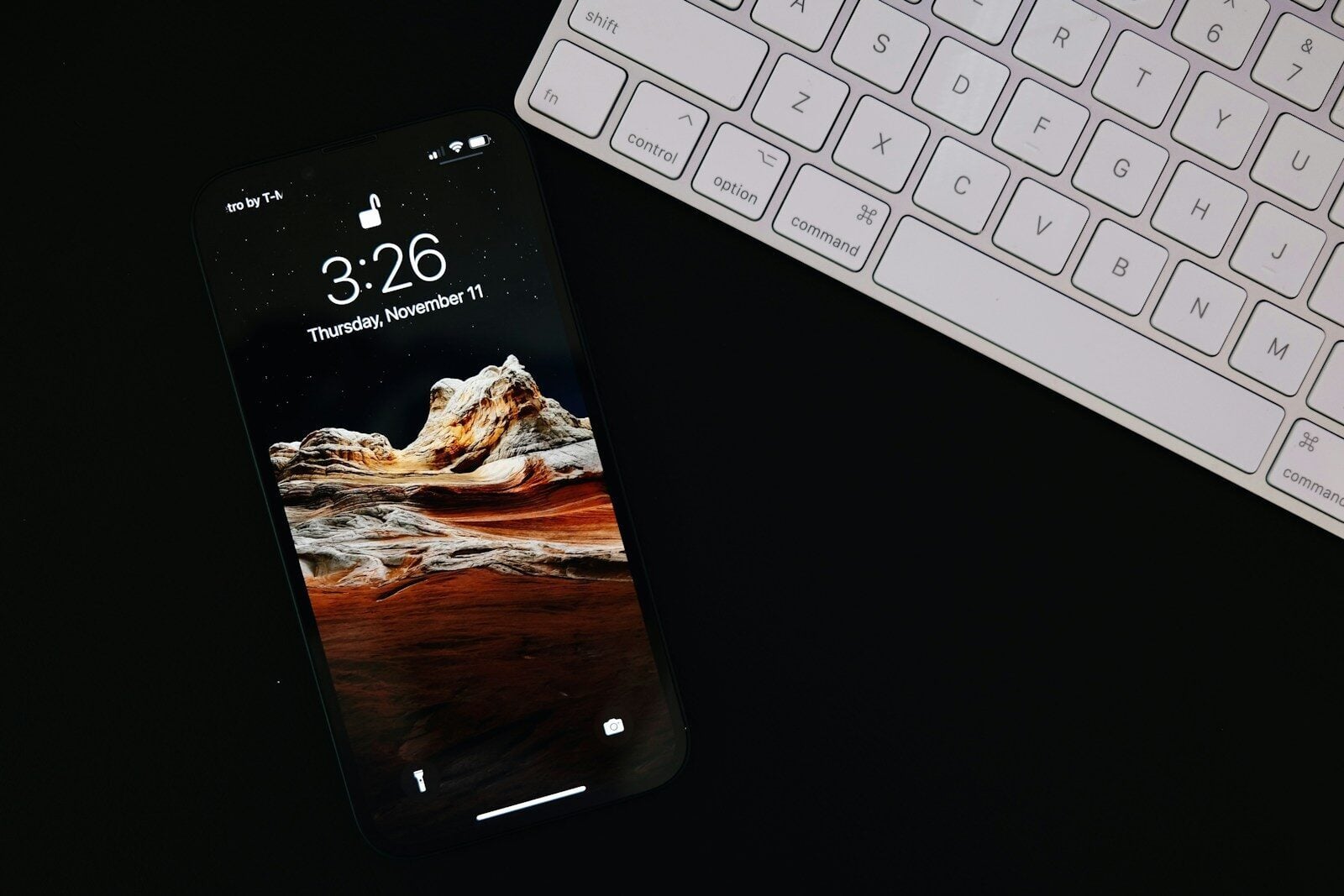
An iPhone-to-Mac workflow already has a useful shape: capture quickly, organize carefully, edit with intention, and export for a specific screen. Adding Seedance 2.5 should not replace that structure. It should occupy one clear stage between a selected still image and the finishing edit.
Consider a travel creator who photographs a small mountain cabin at first light. The iPhone image has a strong composition, soft mist behind the roof, and enough space above the trees for a vertical social crop. The creator wants to test a short moving version in which the mist shifts, warm light appears in one window, and the camera moves forward slightly.
Capture with motion in mind
A useful source image is more than a pleasing photograph. The subject needs a clear outline, readable light, and enough surrounding space to support movement or reframing. Before leaving the location, capture a few deliberate alternatives: one wider view, one closer frame, and one version with a little more space in the expected direction of camera movement.
Keep exposure and color natural. Extreme computational effects, heavy sharpening, or aggressive portrait-style separation can create edges that become unstable when the image moves. If a person appears, confirm that the planned use is permitted and choose a frame that does not reveal more identity than the project requires.
Move the material to the Mac without losing context
Transfer the original-resolution files through the creator’s normal method, whether that is a synchronized photo library, direct cable, or local sharing. Do not begin with a copy downloaded from a messaging app or social feed.
Create one project folder with clear subfolders: Sources, Selects, AI Drafts, Review, Edit, Audio, Graphics, and Exports. The untouched iPhone files belong in Sources. Working copies go in Selects. This separation prevents a generated frame or edited derivative from being confused with the original photograph.
Select one source image, not a pile of near-duplicates
Compare the cabin photographs at full size. Check focus around the roofline and trees, highlight detail in the sky, shadow detail near the doorway, and any signs or lettering that may need to remain accurate. Pick one main source and keep the alternatives only as visual evidence where another angle genuinely helps.
Write a short selection note: cabin centered low in frame, mist behind trees, cool dawn palette, one dark window, no people, slow forward movement planned. This gives the later review a stable reference and keeps the prompt from becoming a vague request for atmosphere.
Prepare the vertical version before generating
If the destination is a vertical feed, create the vertical crop on the Mac first. Place the cabin where it remains readable on a phone and leave safe space for a title or caption. Check that the roof, nearby trees, and horizon are not squeezed against the frame.
A vertical crop changes emphasis. The wider original may communicate landscape, while the tall version emphasizes the cabin and rising mist. Decide which story the social version should tell before motion is added. Do not rely on an automatic center crop after generation.
Write a small motion plan
Describe only the change the still needs. In this example: begin close to the selected photograph; let the mist move slowly behind the cabin; introduce a restrained warm glow in one window; make a gentle forward camera move; then settle with the cabin still recognizable and the palette unchanged.
Do not ask for a new season, dramatic weather, people entering, text on signs, and several camera moves at once. The purpose is to test the transition from still photography to motion, not to invent a full travel film.
Let the still enter the AI-video stage
Once the source, crop, and motion plan are approved, the selected image can move into generation. A creator considering Seedance 2.5 can use the cabin photograph as the visual reference, apply the vertical framing, and produce a draft for comparison with the original.
This is a handoff point, not a platform partnership. The iPhone supplied the photograph, the Mac organized the assets, and the generation stage explores movement. No official integration or endorsement by Apple is implied, and the workflow does not depend on one named editing application.
Review on the Mac before editing
Open the draft beside the selected still. Scrub through the video and check the cabin geometry, roof edge, windows, tree line, colors, and direction of light. Look for new doors, changing materials, invented signs, or a horizon that moves unnaturally.
Review the motion separately. The mist should support depth without hiding the subject. The camera move should feel slow and continuous. The window glow should not suggest an interior detail that was never visible. Mark usable ranges and reject a draft that requires more repair than the movement is worth.
Finish in the editor you already use
Bring the chosen draft into the creator’s normal Mac editing software. Trim the opening, adjust speed if necessary, restore the approved color, and replace uncertain audio. Add titles, location names, captions, and credits as verified graphic layers rather than depending on generated text.
Keep the end frame still long enough for the viewer to read any final message. If the clip will run muted, make sure the visual sequence remains understandable. If sound is included, confirm that music and ambience are owned or licensed for the intended channel.
Check the vertical output on the actual phone
Export a review copy and watch it on the iPhone at normal brightness. Check whether interface overlays cover the cabin, whether the title is readable, and whether compression creates banding in the mist or sky.
Watch once at normal speed and once by scrubbing. A smooth desktop preview can hide a single distorted frame. Confirm that the first frame works as a feed thumbnail and that the last frame does not cut off before the message lands.
Keep the project reversible
Store the source photograph, crop, motion plan, chosen generation, edit project, audio rights, graphics, and final export in their assigned folders. Use version names that identify orientation and review status instead of repeatedly saving files as final.
Preserve the untouched iPhone original and the final human-edited master. That provenance matters when a client asks what was captured, what was generated, and what was changed during finishing.
A practical addition, not a replacement
Seedance 2.5 can add a motion-drafting stage to an established iPhone and Mac process. The strongest use is narrow: begin with a good photograph, organize it, choose a purposeful crop, explore one movement idea, and return the result to normal editing and review.
The creator’s visual judgment still connects every stage. The camera choice defines the source, folder discipline protects it, the moving draft tests the idea, and human finishing decides what is accurate enough to publish.
