

You thought handing your child an iPhone would be simple—until they started disappearing into it.
Now they scroll for hours, message people you don’t know, and stumble into content you never meant them to see. You try setting time limits and deleting apps, but it’s never enough. What’s missing is a real system—one that protects them and gives you peace of mind.
This practical guide will help you solve real parenting tech problems—from limiting screen time to blocking unsafe sites and protecting online privacy with the right tools, including a VPN. It’s everything you wish was built into the iPhone, finally explained.
Problem 1: My Kid Spends Too Much Time on Apps
Apple’s Screen Time feature was built for this. It allows you to monitor and limit how long your child spends on specific apps or categories like games and social media.
What You Can Do:
- Go to Settings > Screen Time and tap Turn On Screen Time.
- Set Downtime to block access to apps during homework or sleep.
- Use App Limits to restrict how long specific apps can be used each day.
- Turn on Ask to Buy to prevent in-app purchases.
Many parents overlook one powerful feature: Share Across Devices. With this turned on, time limits apply across all Apple devices your child uses—no switching from iPhone to iPad to get around restrictions.
Real-World Example:
Emma, a mother of two, noticed her son kept using YouTube on his iPad even after the iPhone was locked down. She didn’t realize Screen Time wasn’t synced. Once she turned on Share Across Devices and added a passcode, usage finally balanced—and tantrums dropped.
Problem 2: I’m Worried About Inappropriate Content
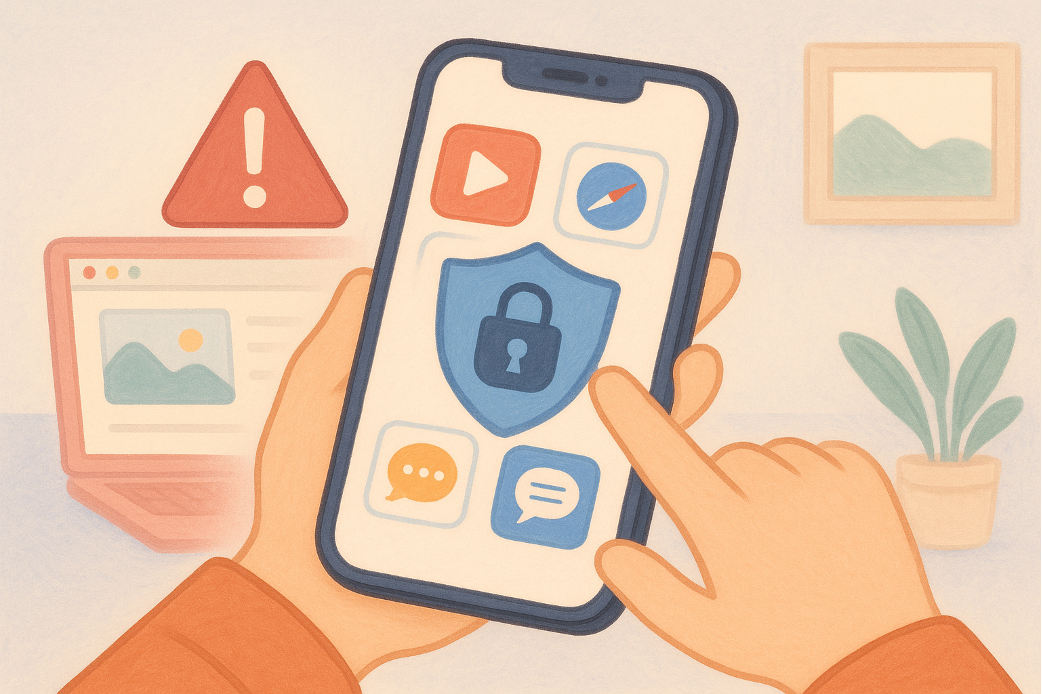
Even with app time limited, what happens within those apps can be problematic—videos, browser searches, chat messages. Apple lets you filter content and limit what your child can access.
What You Can Do:
- Go to Settings > Screen Time > Content & Privacy Restrictions.
- Enable Content Restrictions to block adult websites, explicit music, and apps by age rating.
- Use Communication Limits to prevent contact with unknown people.
- Restrict Siri from searching web content or showing results with explicit language.
But here’s the catch: these settings mostly manage what your child accesses through Apple’s own apps. If they use third-party browsers or messengers, content can still slip through.
This is where adding a privacy-focused layer helps.
Want to protect what your child browses, even outside Safari?
As Apple’s built-in restrictions don’t always cover third-party apps or browsers, you may want to add an extra layer of protection.
Using a Free VPN for iPhone helps encrypt your child’s online activity and mask their IP address. This kind of privacy tool safeguards their location and traffic on iOS—even in apps that operate outside Apple’s default filters. It’s a useful companion to traditional parental controls.
Real-World Example:
Jason installed a secure browser and thought it was enough. His daughter still managed to access a meme-sharing site with violent content through a messaging app. He later added a free VPN with website filtering, which helped block that access completely, even outside Safari.
Problem 3: My Child Connects to Public Wi-Fi Often
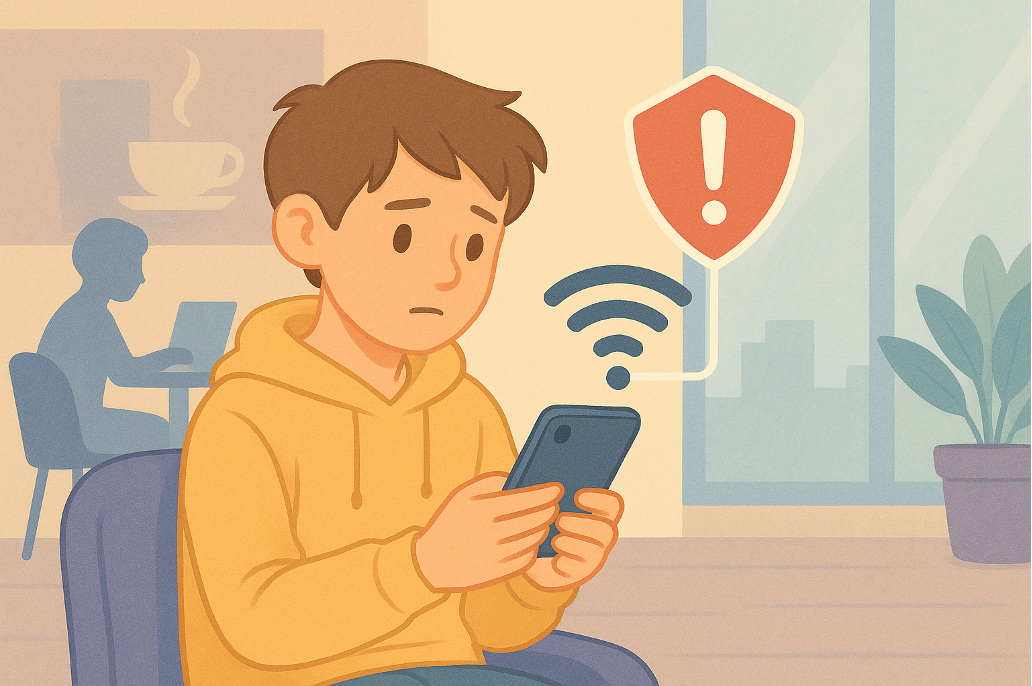
School, cafes, airports—even libraries. Kids love connecting to public Wi-Fi without knowing the risks. These networks often expose personal data, location, or even browsing history.
Apple doesn’t offer full network protection on public Wi-Fi beyond iCloud Private Relay (which doesn’t cover all traffic or apps).
What You Can Do:
- Educate your child about avoiding unknown networks.
- Turn off Auto-Join Hotspot in Wi-Fi settings.
- Disable location-based system services that they don’t need.
And most importantly: encrypt your child’s traffic whenever they connect outside the home.
Safe browsing starts with encrypted protection
Public networks—like those in schools, cafés, or airports—often lack encryption and leave your child’s data exposed.
A VPN Free Download can protect their connection by encrypting traffic and hiding their IP address. As an iOS-level privacy tool, it helps secure browsing and location data when Apple’s built-in protections aren’t enough—especially across unsecured Wi-Fi.
Real-World Example:
Lily’s teenage son was using public Wi-Fi at a friend’s house and accidentally joined a spoofed network. After a strange activity popped up on his Apple ID, Lily installed a VPN across all devices. The issue never happened again.
Problem 4: My Kid Hides Activity or Bypasses Settings
Tech-savvy kids quickly learn how to remove apps, delete search history, or reset device settings. If your child tries to dodge your controls, here’s what you can do.
What You Can Do:
- Set a Screen Time passcode only you know.
- Enable Family Sharing so you can approve all purchases and downloads.
- Block Settings app changes under Content & Privacy > Allow Changes.
- Regularly check Screen Time reports for usage trends or suspicious patterns.
It’s not just about restrictions—it’s about oversight.
Monitoring doesn’t mean spying. It means helping your child develop digital discipline in a space that feels safe, not secretive.
Real-World Example:
Derek found out his daughter had figured out the passcode. She’d reset the Screen Time settings after school while he was at work. He switched to a randomized alphanumeric passcode and used Family Sharing to stay ahead of any new installs or changes.
Final Thought: More Than Tools—Build Digital Trust
Tools like Screen Time, content filters, and VPNs are helpful, but they won’t replace honest conversations. Kids need to know why restrictions exist, how to stay safe online, and when to come to you if something feels wrong.
The iPhone has evolved into a tool that can shape a child’s worldview. As a parent, shaping how it’s used is one of the most impactful things you can do.
Appendix A: How to Set Up a Free VPN on iPhone (Step-by-Step)
If you choose to use a VPN to enhance your child’s privacy, here’s how to get started:
- Go to the App Store and search for a reliable free VPN provider.
- Download and install the VPN app.
- Open the app and follow the on-screen setup to connect to a secure server.
- Enable Auto Connect so it turns on every time the phone connects to Wi-Fi.
- Choose servers optimized for privacy and speed, not just location spoofing.
- Test access to common kid-used apps to ensure functionality.
Bonus tip: Some VPNs’ free versions for iOS don’t require registration, like X-VPN.
Appendix B: Common Mistakes Parents Make with iPhone Controls
Avoid these frequent errors to get the most out of Apple’s features:
- No Screen Time Passcode ? Kids can undo all your efforts
- Only Blocking Safari ? Doesn’t block third-party browsers
- Forgetting Share Across Devices ? Kids bypass limits on other Apple products
- Using Just One Strategy ? No single tool is enough—use filters, reports, VPNs, and education together
This article was contributed by Sandra Mitchell, a privacy advocate at X-VPN, who writes to simplify cybersecurity and inspire digital confidence.
